Route Distribution
Routes can be distributed via:
- Paper printouts (PDF),
- sending SMS,
- callback URL
- iCal file export (for electronic calendars),
- GPS file export (for GPS navigation devices),
- route export to Mapo Driver.
The mobility/GPS partner is activated on request to the sales team when you subscribe or when acquiring a fleet of devices. Only activated services are visible.
Printouts
Exporting a route sheet as a PDF allows you to print it on paper.
In the “Route Distribution” section of the “Global Settings” tab, expand the “Print” accordion
- Include map: If ticked, the route sheet displays the map under the title.
- Include signature box: If ticked, a space for a signature appears to the right of the Destination line.
- Include time slots: If ticked, the time slots are shown in the right-hand column of the table.
- Include GPS coordinates: The box allows you to display or hide the destination’s geographical coordinates
- Barcodes: Barcodes can be generated for each stop. They appear under the stop name. Barcodes are generated from the Destination reference.
- Route header: The area lets you include a header on the route sheet
Printable route sheets look like the image below:
Note
From the Plans page, clicking the export icon 
Print settings and sending to Mapo Driver
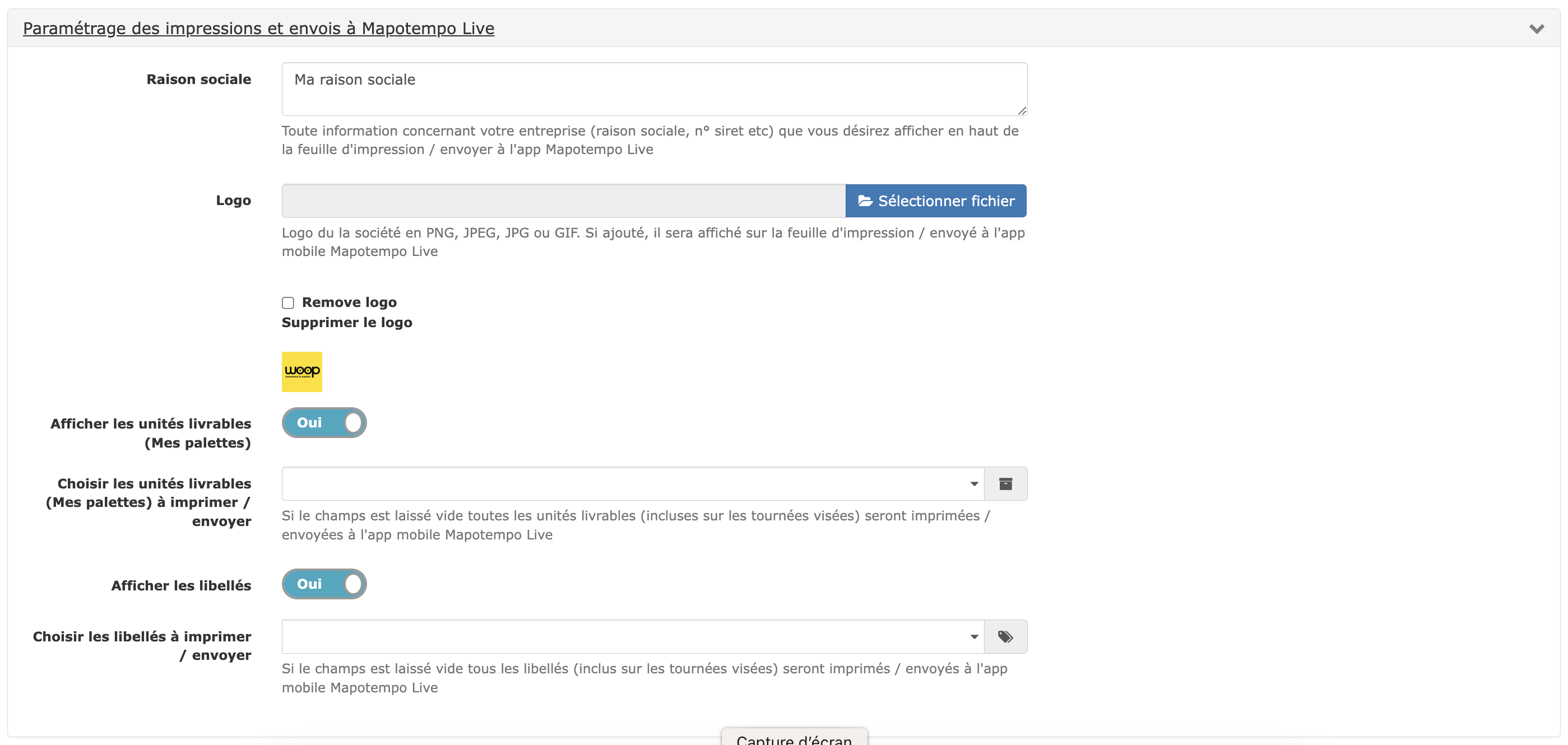
Company name: You can enter your company name, which will appear on the export
- Logo: You can upload your company logo, which will appear on the exports
-
Display deliverable units: using this button, you can choose whether or not to display your deliverable units in the mobile app and on the route sheet.
- Choose deliverable units to print/send: this field appears if “display deliverable units” is ticked; you can select the desired deliverable units here. (If nothing is selected, all units are sent by default)
-
Display labels: using this button, you can choose whether or not to display your labels in the mobile app and on the route sheet.
- Choose labels to print/send: this field appears if “display labels” is ticked; you can select the desired labels here. (If nothing is selected, all labels are sent by default)
SMS (optional)
Sending SMS is an option that can be activated on request to the sales team. Additional charges apply.
In the “Route Distribution” section of the “Global Settings” tab, expand the “SMS” accordion.
-
SMS template: You can write the SMS template to be sent here. Variable parameters can be included.
Note: when including a variable, the character count will be based on the substituted string. For example, {NAME} with 1 character will be counted as Mr Martin with 9 characters.
- Long SMS: An SMS contains 160 characters. You can enable sending long SMS. Long SMS are charged as several SMS. If the long SMS option is unticked, only the first 160 characters will be sent.
- SMS sender: lets you send the account name to the SMS recipient.
Note
Sending SMS requires that mobile phone numbers are entered for Destinations (see Destination management).
Note
From the Plans page, clicking the export icon 
Callback URL
On request to the sales team, the callback URL option can be activated. The callback URL allows you to link an external application to read route data or synchronise it for other actions.
Enter the name and URL of the external application. The URL can contain the following replacement strings:
- {PLANNING_ID} for the Plans ID,
- {PLANNING_REF} for the Plans reference,
- {ROUTE_ID} for the route ID,
- {ROUTE_REF} for the route reference.
Example URLs:
- http://www.example.com?p_id={PLANNING_ID}
- http://www.example.com?planning_ref={PLANNING_REF}&route_ref={ROUTE_REF}
Note
From the Plans page, clicking the export icon gives you the option to export to nomApplicationExterne.
Calendars
The iCal format allows you to export route times and stops to a calendar.
No settings are required to use this export.
Note
From the Plans page, clicking the export icon gives you the option to export to an iCal Calendar or send an iCal Calendar by email.
CSV/Excel file
The CSV format allows you to export route times and stops to a file that can be opened by any spreadsheet software.
No settings are required to use this export.
Note
From the Plans page, clicking the export icon gives you the option to export to a CSV/Excel File
Mapo Driver (optional)
Mapo Driver is a mobile app that assists with carrying out delivery, collection, sales, or distribution routes. It can be linked to Mapo, which contains vehicle settings, addresses to visit, and optimised routes.
Downloading to mobiles and/or tablets is free and takes just a few seconds. The Mapo Driver section explains how the app works.
Enter the User Name and API Key provided by Mapo support. When the User Name and API Key are entered correctly, the grey box turns green. Vehicles will then be able to receive route data.
If there is an error with the User Name or API Key, the box turns red.
Note
From each Vehicle page, the list of mobility devices is shown. Assign the appropriate mobility device directly in the Vehicle record.
GPS navigation devices
Mobile devices are the devices installed in vehicles or used by drivers.
Export to GPS navigation systems is supported on the following mobile devices:
- Alyacom
- Masternaut
- Notico Deliv’
- Orange Fleet Performance
- Praxedo
- SuiviDeFlotte
- Teksat
- Trimble
- TomTom WEBFLEET
On request to support, the mobile device(s) will be linked. The connection box(es) will appear at the bottom of the “Global settings”.
Alyacom
Enter the Identifier and API Key for your Alyacom account. Vehicles will then be able to receive route data. When the details are entered correctly, the grey box turns green.
If there is an error with the Identifier or API Key, the box turns red.
Note
From each vehicle’s page, the list of mobile devices is available. Assign the appropriate mobile device directly in the vehicle record.
Masternaut
Enter the Username and Password for your Masternaut account. Vehicles will then be able to receive route data. When the details are entered correctly, the grey box turns green.
If there is an error with the Username or Password, the box turns red.
Note
From each vehicle’s page, the list of mobile devices is available. Assign the appropriate mobile device directly in the vehicle record.
Notico Deliv’
Enter the FTP server address, the directory on the FTP server, the user and the password for your Notico Deliv’ account. Vehicles will then be able to receive route data. When the details are entered correctly, the grey box turns green.
If there is an error with the FTP server address, directory, user or password, the box turns red.
Note
From each vehicle’s page, the list of mobile devices is available. Assign the appropriate mobile device directly in the vehicle record.
Orange Fleet Performance
Enter the user and password for your Orange Fleet Performance account. Vehicles will then be able to receive route data. When the details are entered correctly, the grey box turns green.
If there is an error with the user or password, the box turns red.
Click on to assign a mobile device to a vehicle.
Note
From each vehicle’s page, the list of mobile devices is available. Assign the appropriate mobile device directly in the vehicle record.
Warning
CAUTION: If vehicles are already configured, synchronisation will overwrite the data in the vehicles with the data from the Orange Fleet Performance account.
Praxedo
Enter the login, password, departure job code, arrival job code, equipment code to deliver and route code for your Praxedo account. Vehicles will then be able to receive route data. When the details are entered correctly, the grey box turns green.
If there is an error with the login, password, departure job code, arrival job code, equipment code or route code, the box turns red.
Note
From each vehicle’s page, the list of mobile devices is available. Assign the appropriate mobile device directly in the vehicle record.
SuiviDeFlotte
Enter the user and password for your SuiviDeFlotte account. Vehicles will then be able to receive route data. When the details are entered correctly, the grey box turns green.
If there is an error with the user or password, the box turns red.
Note
From each vehicle’s page, the list of mobile devices is available. Assign the appropriate mobile device directly in the vehicle record.
Teksat
Enter the Client ID, URL, username and password for your Teksat account. Vehicles will then be able to receive route data. When the details are entered correctly, the grey box turns green.
If there is an error with the Client ID, URL, username or password, the box turns red.
Click on to assign a mobile device to a vehicle.
Note
From each vehicle’s page, the list of mobile devices is available. Assign the appropriate mobile device directly in the vehicle record.
Warning
CAUTION: If vehicles are already configured, synchronisation will overwrite the data in the vehicles with the data from the Teksat account.
Trimble
Enter the customer account, user and password for your Trimble account. Vehicles will then be able to receive route data. When the details are entered correctly, the grey box turns green.
If there is an error with the customer account, user or password, the box turns red.
Note
From each vehicle’s page, the list of mobile devices is available. Assign the appropriate mobile device directly in the vehicle record.
TomTom WebFleet
Enter the account, user and password for your TomTomWebFleet account. Vehicles will then be able to receive route data. When the details are entered correctly, the grey box turns green.
If there is an error with the account, user or password, the box turns red.
Click on to assign a mobile device to a vehicle.
Note
From each vehicle’s page, the list of mobile devices is available. Assign the appropriate mobile device directly in the vehicle record.
Note
Destination addresses stored in TomTom WebFleet can be imported directly from the Destinations import page.
Warning
CAUTION: If vehicles are already configured, synchronisation will overwrite the data in the vehicles with the data from the TomTomWebFleet account.