Configuration des véhicules
The vehicle configuration(s) determine general settings for a fleet of vehicles. For example, they enable you to differentiate between vehicles used at different times, such as morning and afternoon.
Note :
On request to the support, the “Multiple configurations” are set up. They are essential for any activity undergoing recurrent variation.
Access to vehicle configurations
Duplicate vehicles configuration
Export a vehicle configuration
Delete a vehicles configuration
Access to vehicle configurations
The “List” page allows you to manage and configure your vehicles. To access it, click on the « Vehicles » menu and select « List »
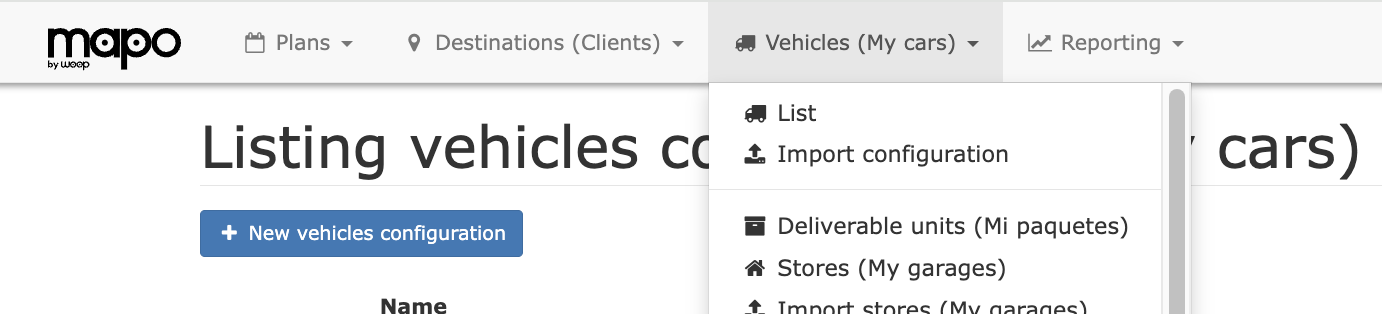

In case of unic configuration, the List page of Vehicle menu displays:
the name of the vehicles configuration and the action buttons on the vehicles configuration
vehicles list :numref: vehicles_list
Note
In case of unique configuration, clicking on the Vehicle menu, the vehicles list displays in the drop-down menu .
In case of multiple configuration, Vehicles List page displays Vehicles configurations (name and actions buttons on each vehicle configuration). :
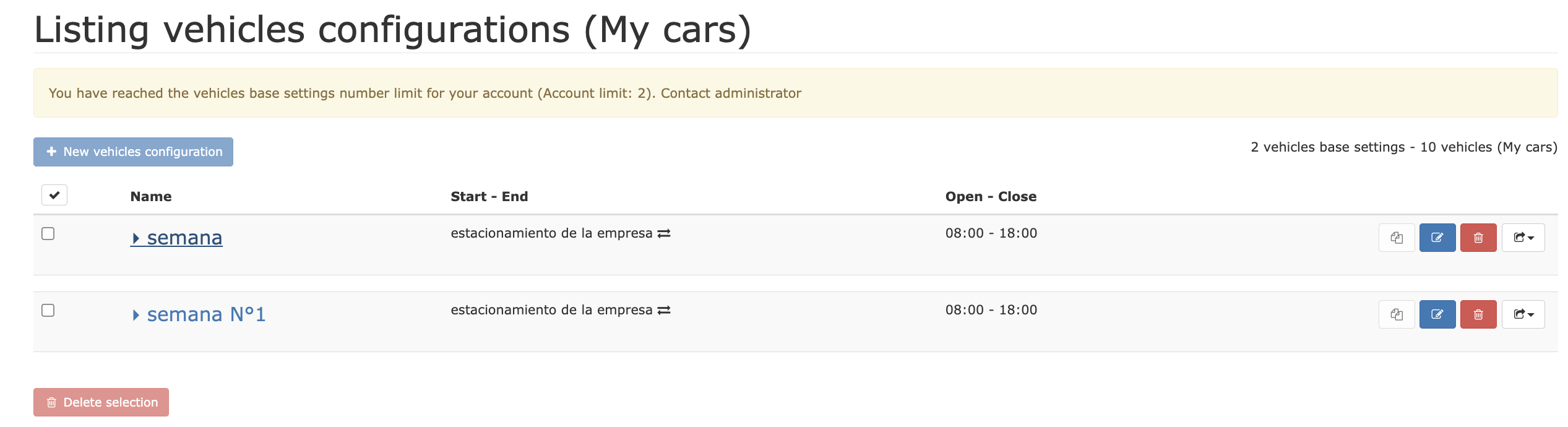

Vehicles are editable in each vehicle configuration.
Edit vehicles configuration
To edit vehicles configuration, click on “Edit” button on the correct vehicles configuration.
Editing page opens with informations to modify or add.
The open page allows you to create a default configuration for your vehicles
Name: name the configuration according to your convenience in order to distinguish the different configurations.
** Departure / Arrival **: select from the drop-down menu the places of departure and arrival, among the stores created. By selecting “None”, the route starts at the first destination and / or ends at the last destination.
Time shifts: set the start and end times of your mobile staff,
Service time (before / after): the preparation times at the beginning and end of the day, without the time spent on the road,
Work time: indicate the working time of your mobile staff. The working time must be less than the working hours (service included without the break).
Disabling a Vehicle


Maximum distance: set the maximum distance that your vehicle can travel, expressed in km,
Rest
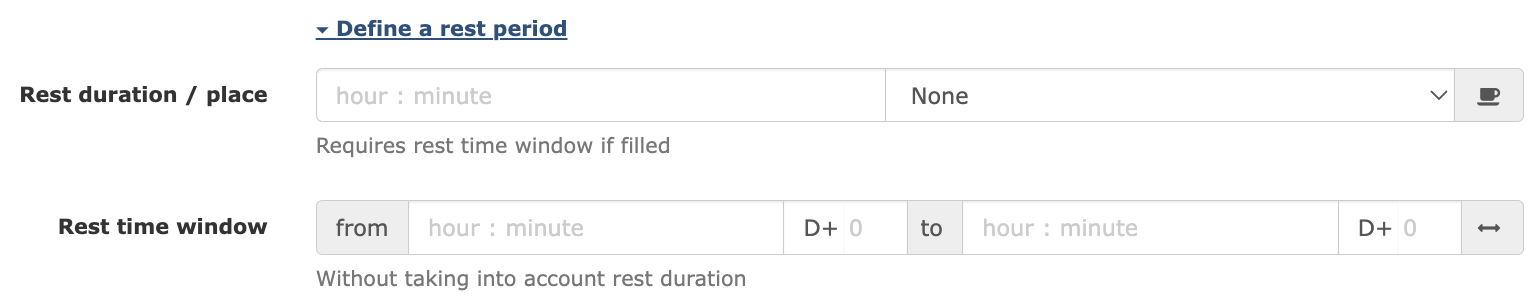

Rest duration / place: the duration of the break for the driver, as well as the place (eg a “store”),
Rest time window (departure/arrival): between which hours the rest can be taken (example: from 13:15 to 14:00, means that the rest period should start between 13:15 and 14:00).
Vehicle’s costs
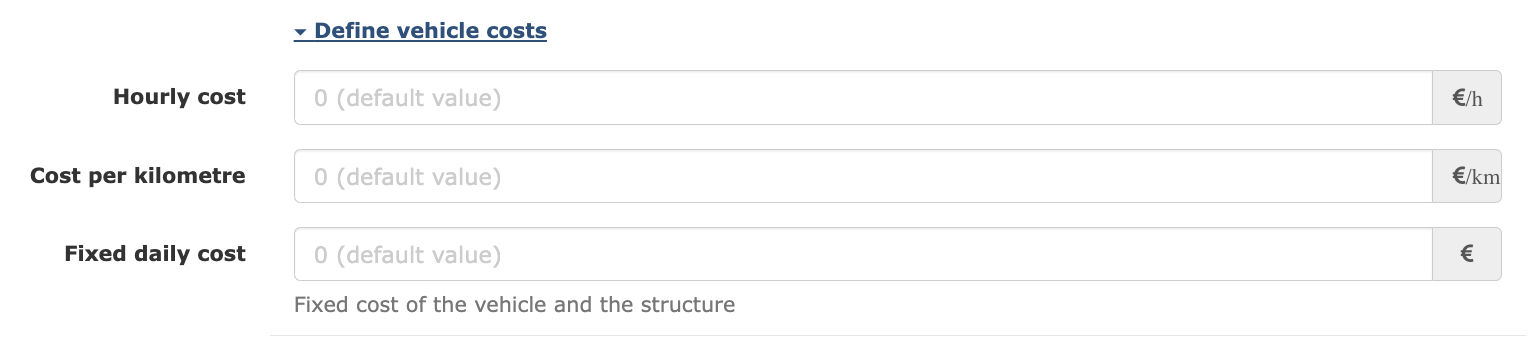

9. Coût horaire : indiquer en € le coût conducteur (rémunération, cotisations employeurs, frais de déplacement) Le montant indiqué est multiplié par le nombre d’heures nécessaires à la réalisation de la tournée.
10. Coût kilométrique : indiquer en € le coût véhicule (carburant, pneumatiques, entretien-réparations, péages (optionnels)) Le montant indiqué est multiplié par le nombre de kilomètres réalisés pendant la tournée.
11. Coût journalier fixe : indiquer en € le coût fonctionnement (financement et renouvellements du véhicule, assurances, taxe à l’essieu, coûts indirects de structure) Le montant indiqué est multiplié par le nombre de jours nécessaires à la réalisation de la tournée.
Note
Costs calculated in this way can be viewed on the Plan page in the information summary for individual routes or for the Plan as a whole.
In case of unic configuration, the vehicles configuration can be modified by Import vehicles configurations.
Note
These default constraints will be passed on to all vehicles associated with this configuration. You can then, if necessary, specify particular constraints on each vehicle.
Duplicate vehicles configuration
On “Vehicles” page > “List”, click on Duplicate button . The duplicated configuration has between brackets the date of creation. Clicking “Modify”, the configuration page allows to Edit vehicles configuration.
Export a vehicle configuration
To allow a backup of vehicles settings, an Export/Import function is available.
On Vehicles List, a vehicles configuration is exportable clicking on the drop down menu . Two formats are proposed: CSV or Excel spreadsheet.
The generated file is in download folder of the PC.
Import vehicles configuration
The vehicles configuration file import can be used from the menu “Vehicle” > “Import configuration”.
The vehicles configuration import page opens.
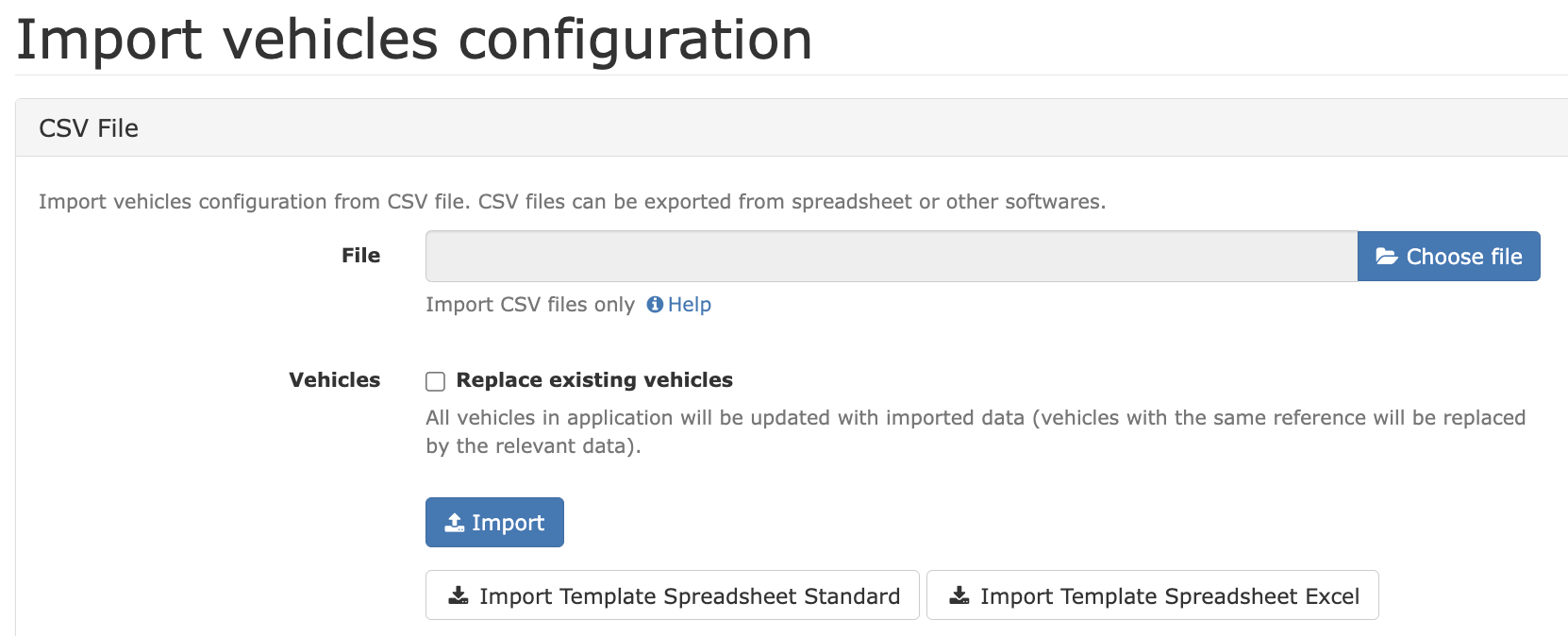

Select file: Click on this button to select your CSV file to import into the web application.
Replace existing vehicles : Check to update existing vehicles (unchanged vehicle reference) and add vehicles configurations. Leave blank to add the configuration without modifying the existing vehicles.
Import: Thank to the informations from your spreadsheet, the vehicles configuration is sent.
- Template : Import templates for standard spreadsheets (Libre Office, CSV) or Excel (Microsoft) spreadsheets are available. Download and enter the columns of this template file with your informations. If your business software allows you to export these informations, copy and paste these informations into this template, keeping the column titles the same. A link “Help” allows to have more details on the content of the file to be imported.
In the case of unique configuration, vehicles import replaces the existing vehicles configuration “Default”. In the case of multiple configuration, the import adds a new configuration.
Delete a vehicles configuration
On the “Vehicles” page > “List”, click on the Destroy button . A window asks for confirmation or cancellation.
In the case of unic configuration, destroying the vehicles configuration is impossible.