Introduction
The status of an order created or received in Woop may be blocked, delayed, or cancelled after delivery of the parcel.
Why use alerts?
This view is the same for all profiles, and not specific to the user.
The alert system allows you to personalize alerts for your user profile.
The aim is to highlight incidents, and for users to be able to prioritise them.
What incidents may occur on an order?
Orders can have one of the following statuses:
- ‘No carrier’ status means that no carrier has been found that matches the order criteria
- ‘Carrier unavailable’ status means that the carrier has been contacted by Woop but is unavailable to deliver in the requested slot or day, and cannot deliver the order
- ‘No Quote’ Status - This can occur for several reasons:
- Products not available
- The order exceeds the capacity of the carrier
- The delivery slots do not match, or the delivery notification time is too short
- The carrier does not deliver to the requested address
- Status ‘To be completed’ means that the order **** has been created in Woop, but it lacks important information to be sent to the carrier
These events are called ‘incidents’.
These incidents are visible in the ‘Alerts’ section on the order page.
If the problem is due to the carrier, the brand, or Woop, it is up to them to provide a solution to the incident.
Once the problem has been resolved by the carrier, the brand, or by Woop, the order will no longer be in error, and the delivery process can resume. The order status:
- has either been changed due to updates from the carrier's or brand’s system
- Or it must be changed manually
Where can I find my alerts?
The order detail page has an ‘Alerts’ block in which you can view the alerts or incidents that have occurred on the order.
To make modifications manually, click on ‘Actions’ → ‘Modify’ from the order detail section.
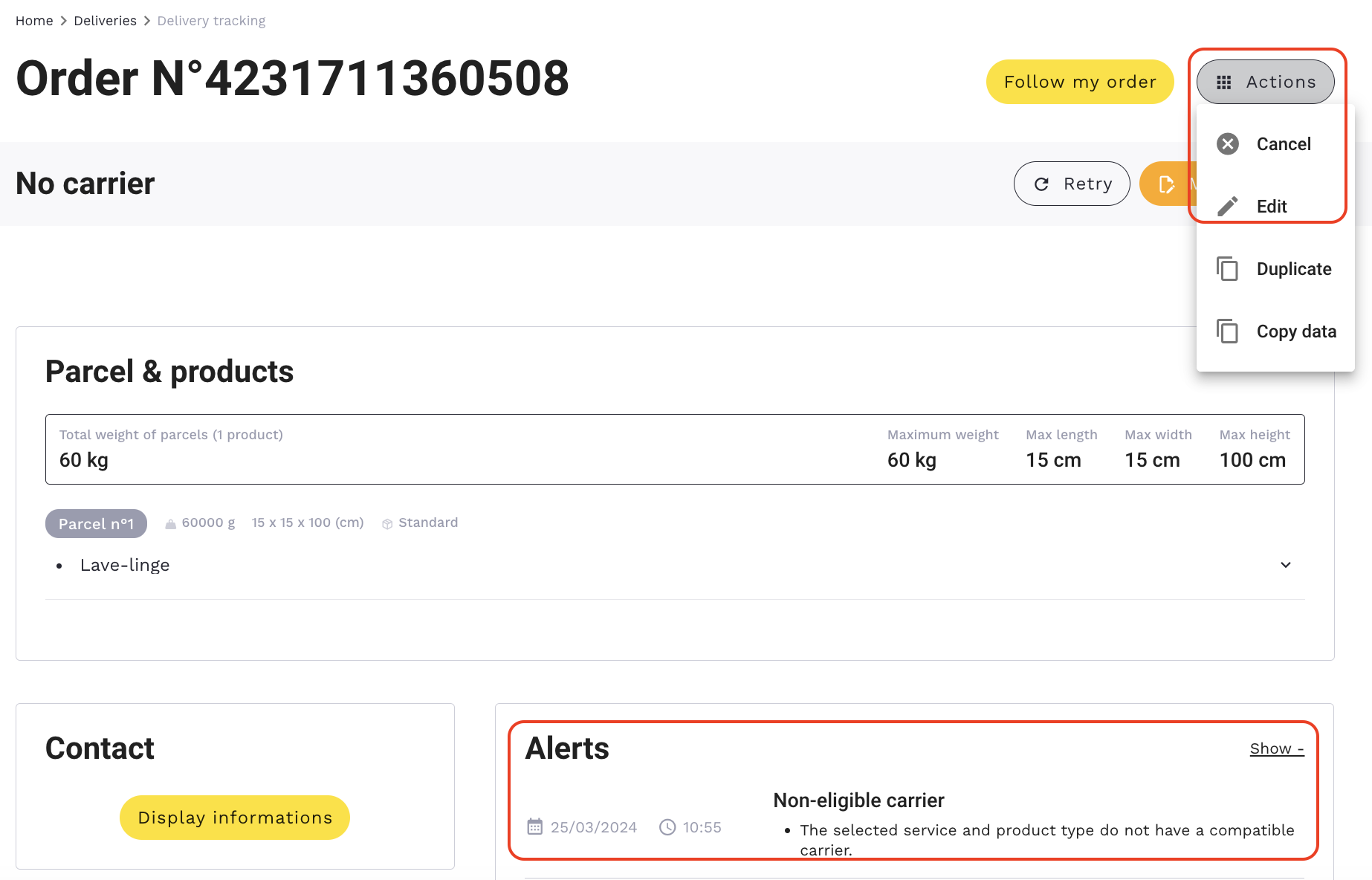
‘Incidents’ can also be found in ‘Delivery History’ on the order page.
To find the orders with incidents or alerts, go to the ‘Deliveries’ page and click on ‘Filter’. This allows you to filter the orders by the statuses selected (you will be able to view several orders for the statuses you select).
In the example below, two order incident statuses have been added to the filter: ‘No Carrier’ and ‘Carrier Unavailable’.
Click on "Apply filters" to get a list of orders.
Result :