1 - Alert management
To access your alerts, click on the ‘Bell’ icon located at the top right of any Woop page.
A pop-up appears as follows.
- ‘All’ allows you to view all alerts, and ‘Unread’ displays only those alerts that have not been read. By default, ‘All’ is selected.
- ‘Mark as read’ changes all unread alerts in the list to ‘read’ status. If all alerts are read, then the icon is greyed out.
2 - Navigating the ‘My Alerts’ section
After clicking on the ‘Bell’ icon, your alerts are presented as follows:
Old view
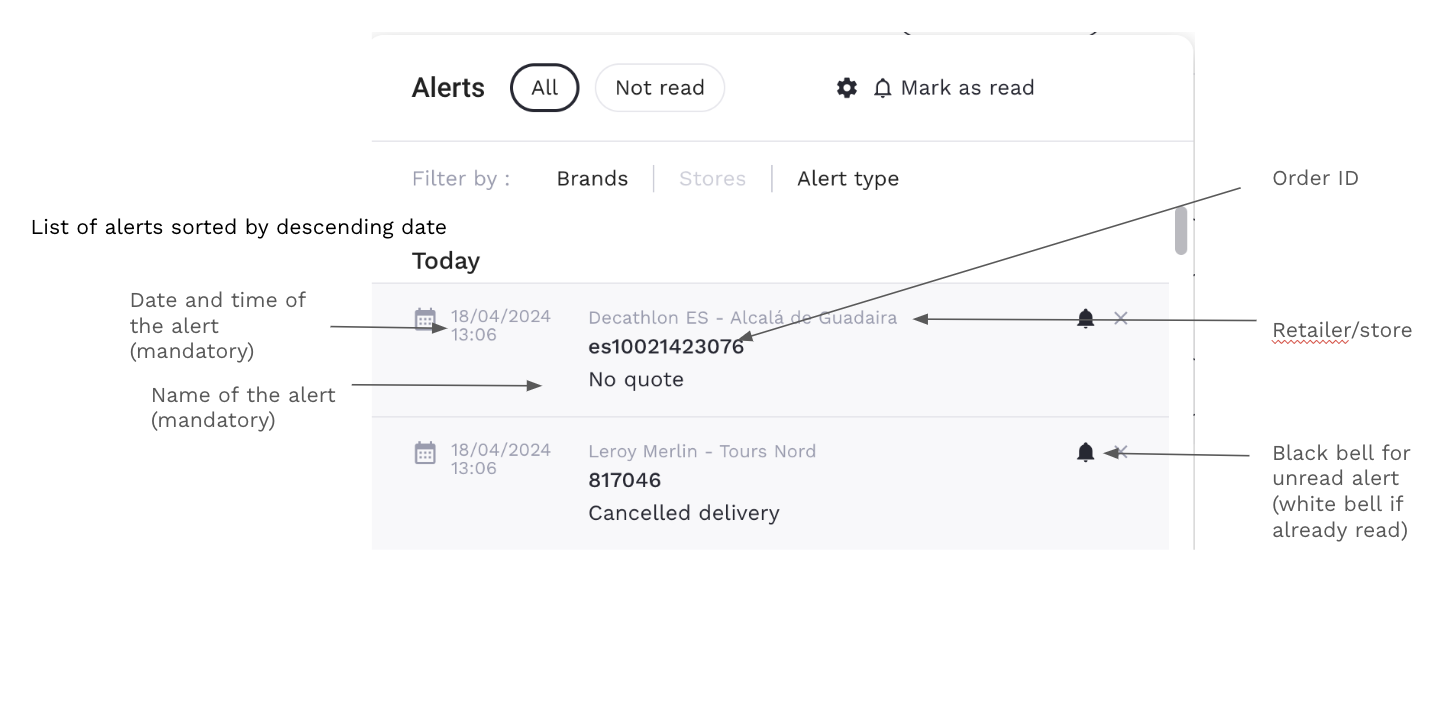
New view
You have the option to filter the read alerts by displaying them as ‘unread’.
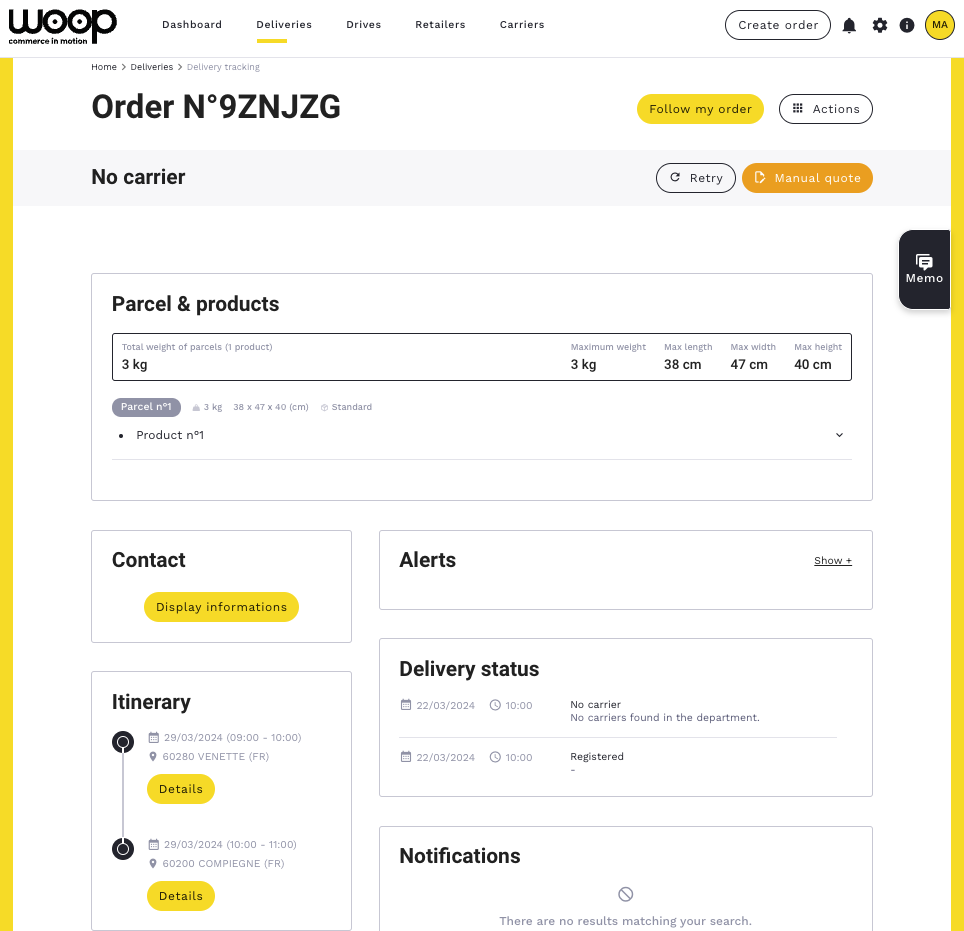
By clicking on an alert in the pop-up window above, you are redirected to the order page (located in the ‘Deliveries’ section).
3 - Filters by Brand, Store, and Alert Type
Three filters are available in this pop-up window:
- Filter by ‘Brands’
- Filter by ‘Stores’
- Filter by ‘Type of alert’
Old view
New view
4 - Searching for alerts without settings
If you want to identify orders in alert or incident status that have not been added to your alerts.
You can do this by going to "Filter", and filtering orders on ‘Order Status’ or ‘Delivery Status’.