What is my delivery network?
Your delivery network allows you to model all your delivery capabilities, independently of your distribution network. It is a prerequisite for managing fleets and routes in Woop.
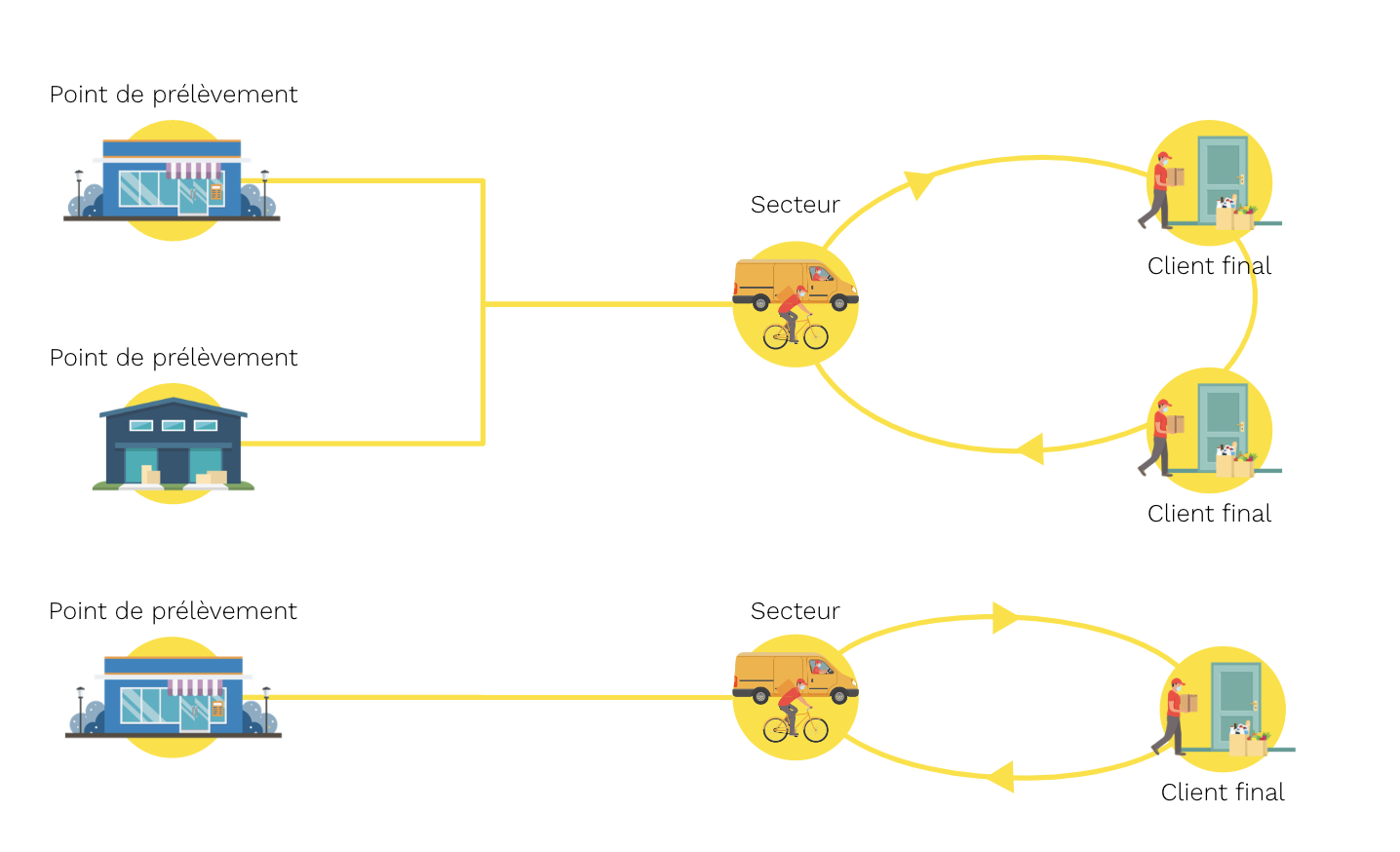
The delivery network is made up of sectors, which can correspond to one or more fleets and one or more exchange places.
Accessing my delivery network
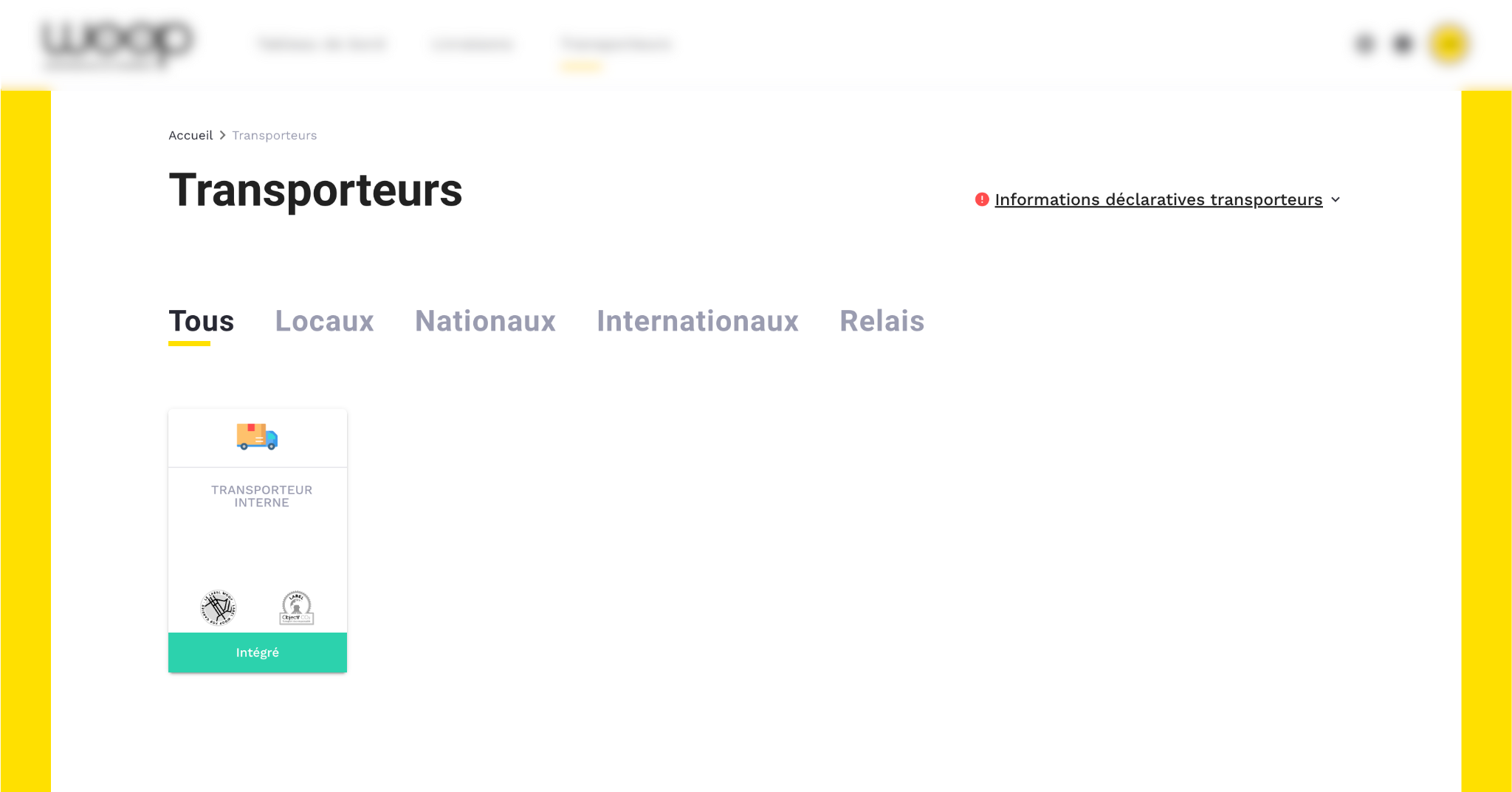
- Go to the "Carrier" menu entry and select your carrier.
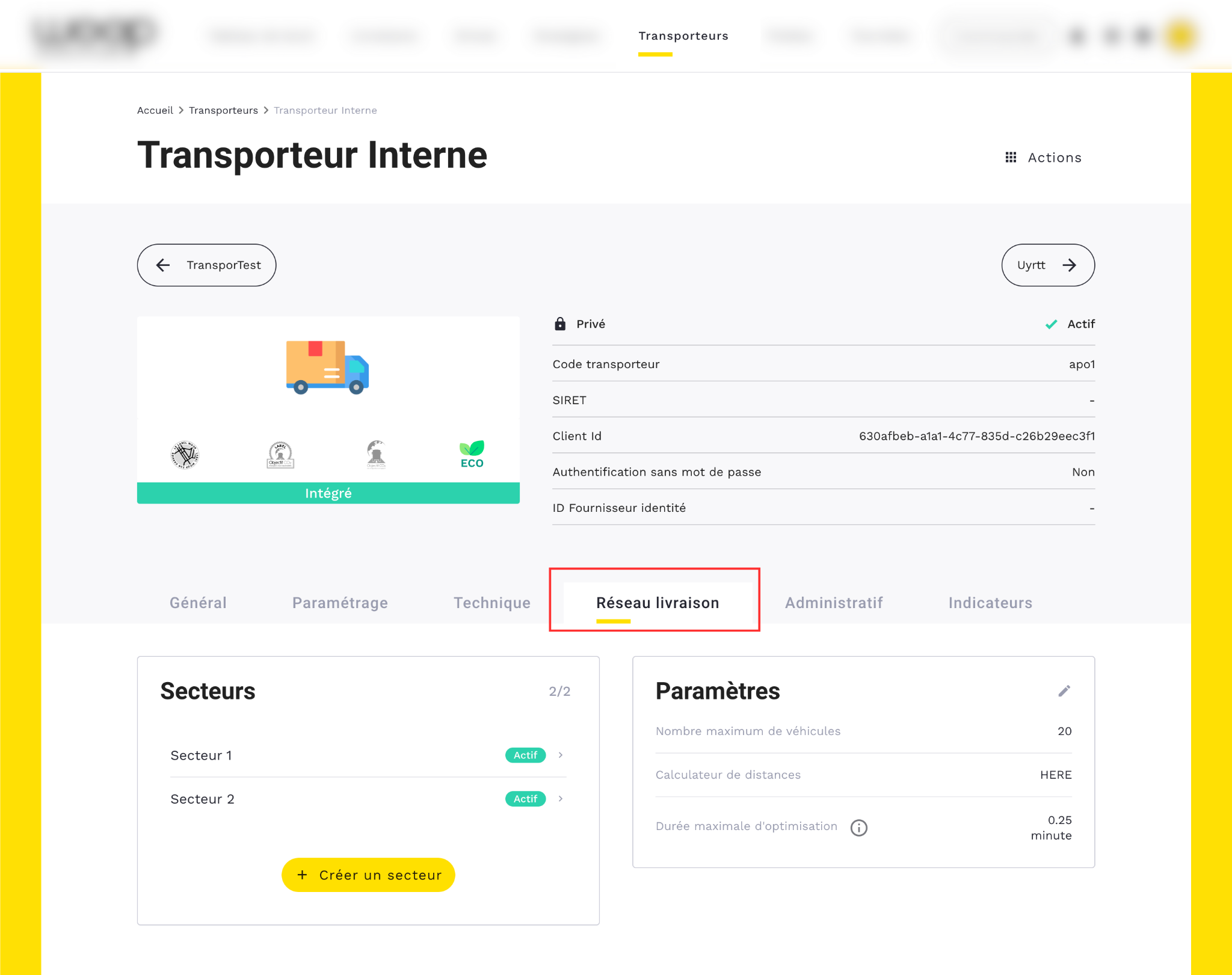
- Choose the "Delivery network" tab
Understanding my settings
🔎 Your settings are visible in the "settings" section.
Three elements are contractually defined and set up for you when the features are activated by the Woop team:
- The distance calculator: by default, we offer the OSRM (Open Source Routing Machine) speed calculator. It will cover a large part of standard needs by offering good performance. For your advanced needs, you can request access to the HERE calculator. (For more information on speed calculators, see our dedicated article)
- The number of vehicles: your maximum number is defined when your account is activated. To unlock more vehicles, contact your Woop representative.
- The maximum optimisation duration: the maximum optimisation time must be set according to the complexity of your needs to offer good optimisation results while respecting your operational constraints. By default set to 5 minutes, it can be adjusted as needed. It will apply to all optimised routes for your activities.
What is a sector?
Sectors are the foundations of your delivery operations. They allow you to distribute your resources across the entire covered territory and associate dedicated collaborators. All sectors form your delivery network.
A sector links deliveries from exchange places with the resources you have to carry them out. In each sector, check the deliveries to be fulfilled, set up your resources (vehicles and agents), and view your routes. This is the level at which optimisation will be launched.
Each sector is completely independent. Resource sharing between multiple sectors is not supported.
👀 Are you also a shipper? Thanks to their independent operation, you can natively manage cases of shared resources.
Creating a sector
- From the "delivery network" tab on your carrier page, you will have access to the "sectors" section.

- Click on "create a sector" and fill in the required information
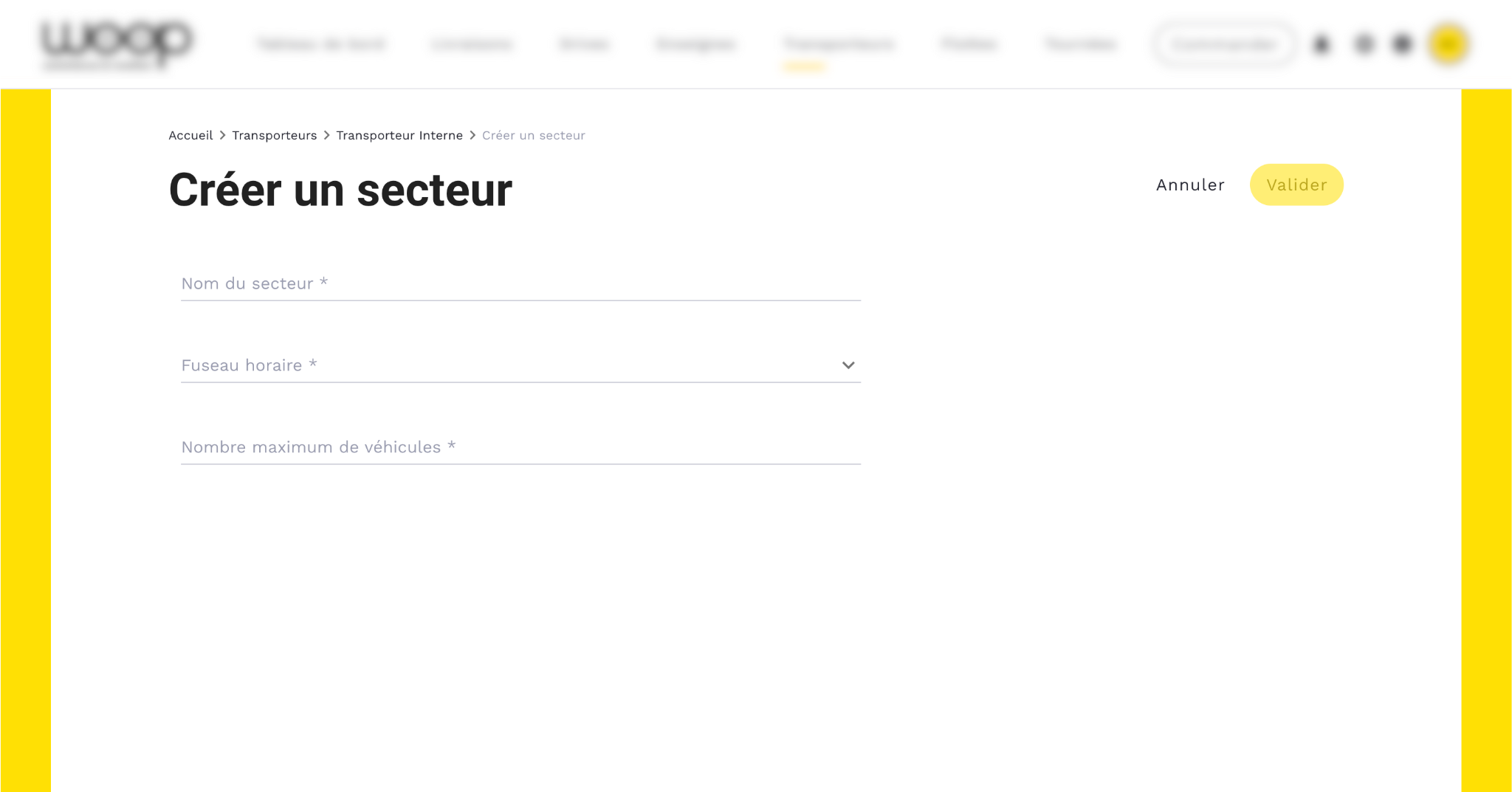
- Name: a name that allows you to easily identify it.
- Time zone: the time zone must match the one used in the area served by the sector.
- Maximum number of vehicles: you can distribute the maximum number of vehicles you have across your sectors. The total number of vehicles assigned to all your sectors cannot exceed the maximum number of vehicles you have. A planner cannot create more vehicles in a sector than you have assigned to it.
Example: you have 30 vehicles. You create a first sector and assign it 15 vehicles. You create a second sector and assign it 10 vehicles. You have 5 vehicles left to assign. If you create a third sector, it cannot exceed 5 vehicles.
🔎 Once created, the sector appears in the "sectors" list of the "delivery network" tab.
👀 You can have just one sector! You operate all your deliveries from a single starting point and with a single set of resources. You may only need one sector.
Associating a sector with an exchange place
For your sector to receive orders, you must select the exchange places with which it should be associated.
⚠️ If your sector is not associated with any exchange place, it will not receive any orders.
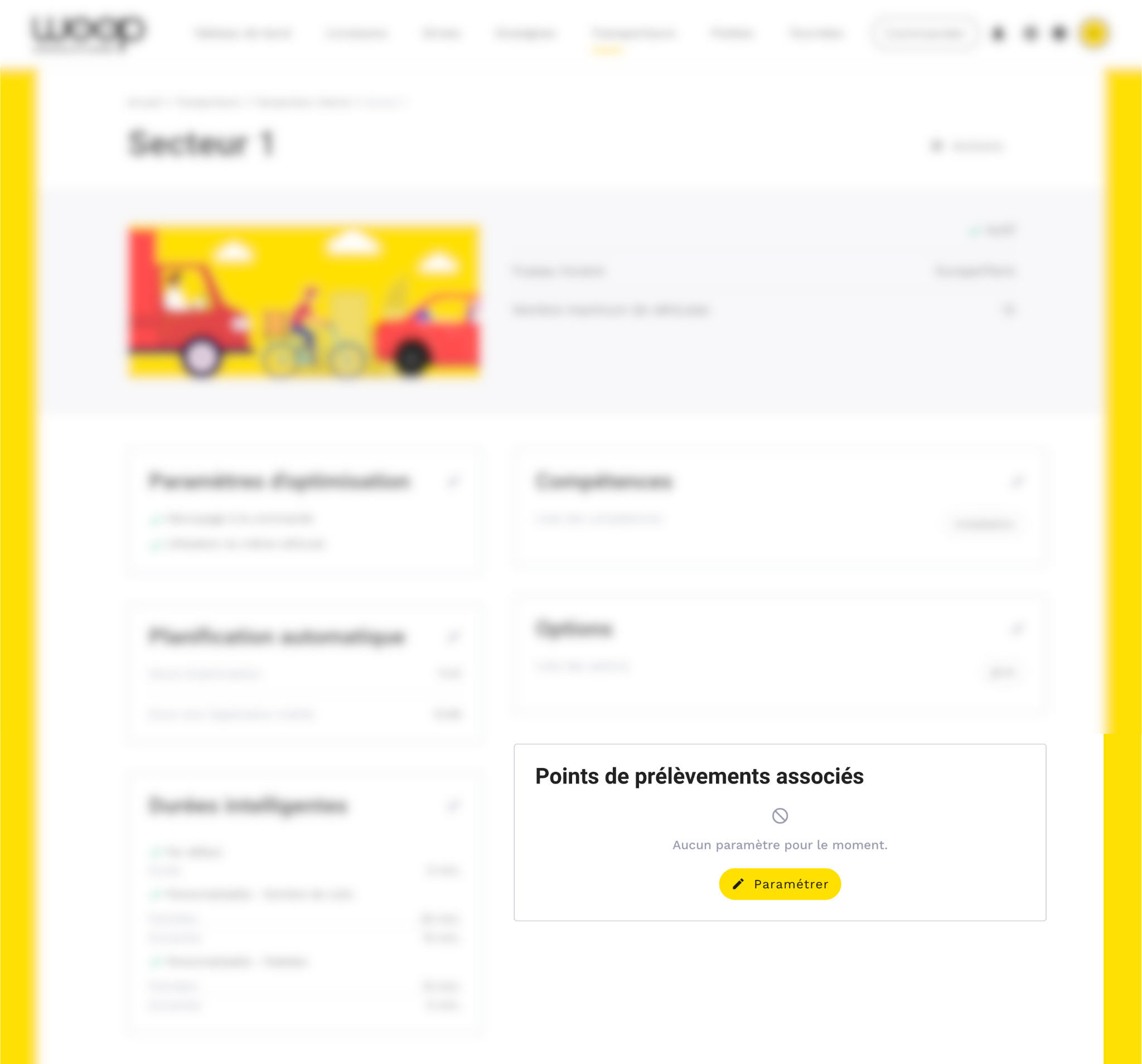
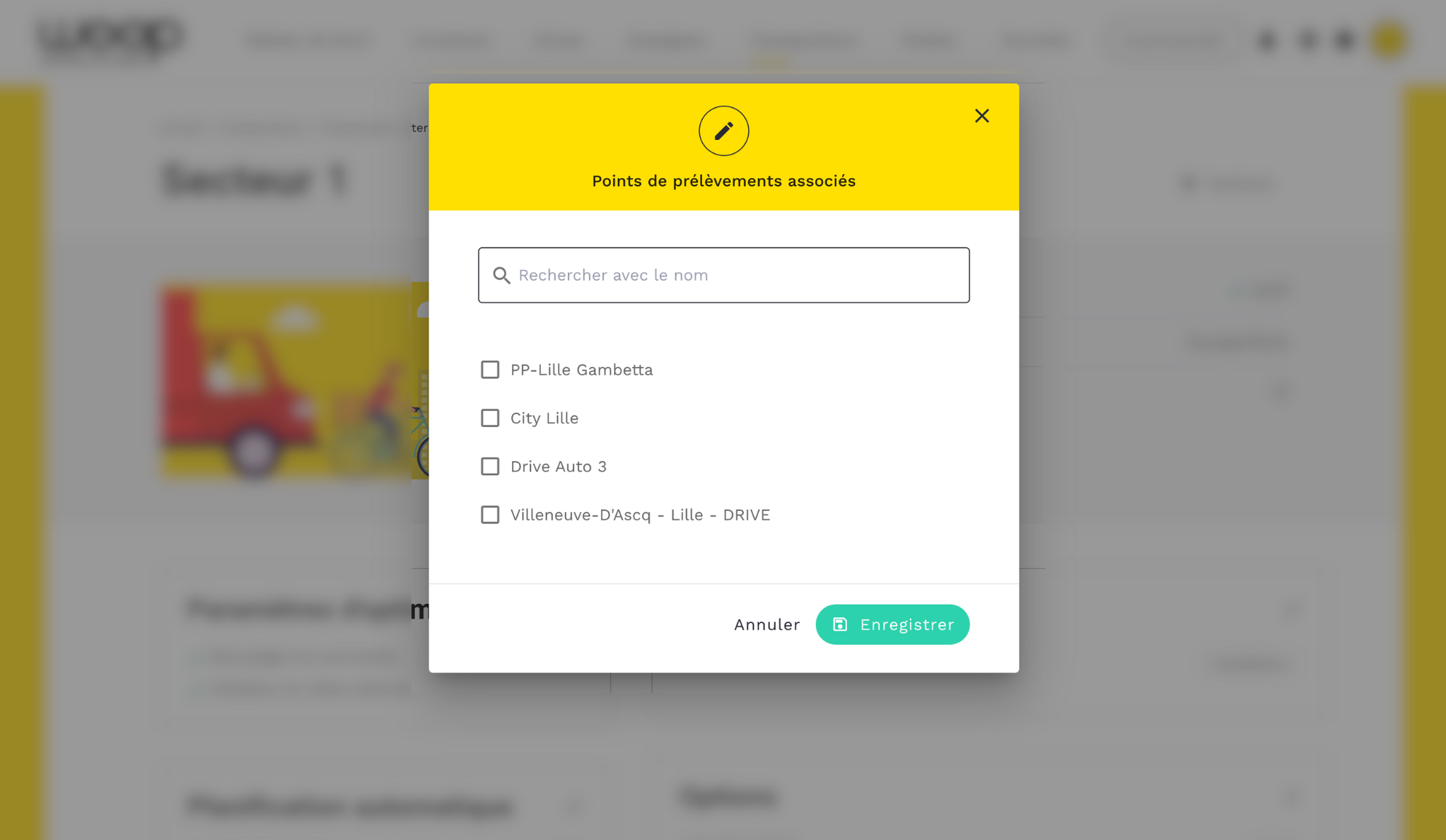
- In the "associated exchange places" section, click on set up: a list of available exchange places will appear.
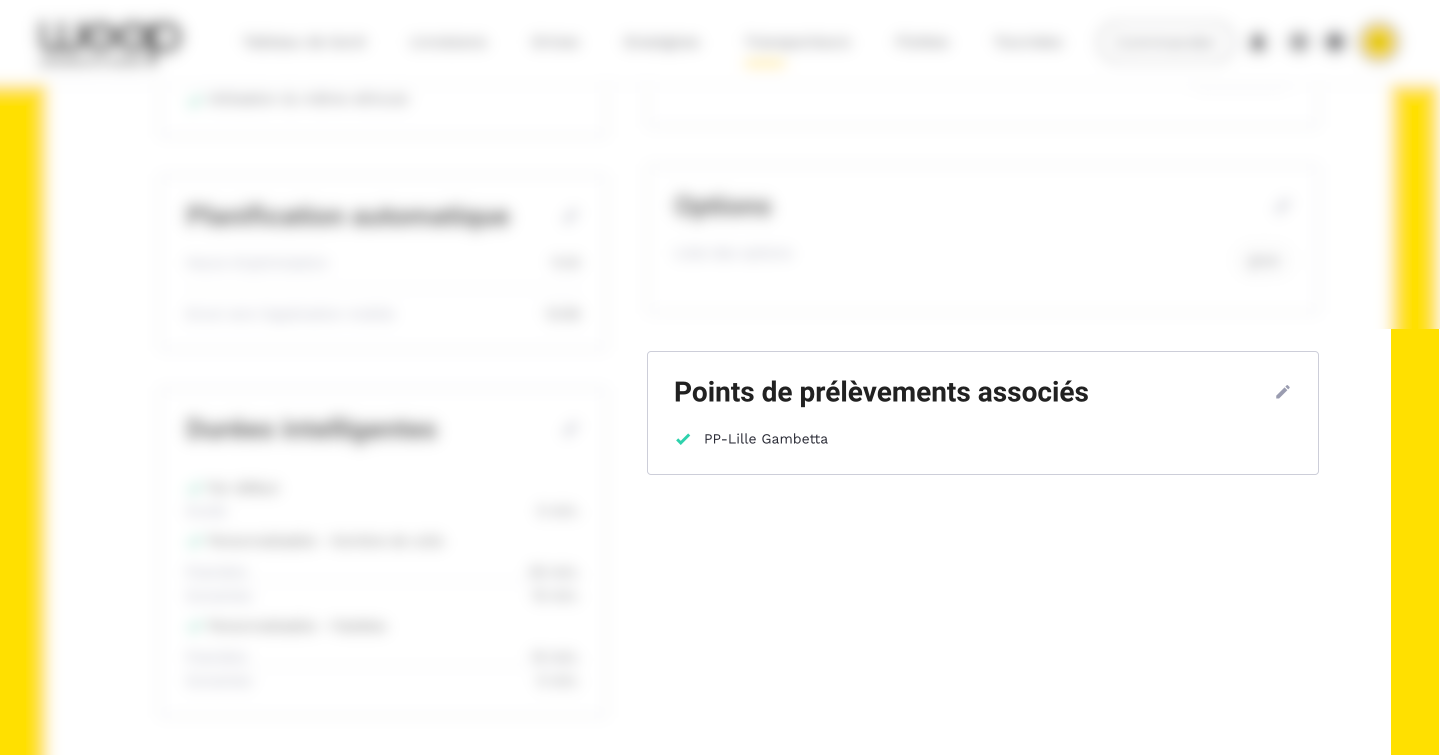
- Once associated, all orders from the selected exchange place(s) will automatically be directed to this sector.
🙋♀️ If you have doubts about the best way to build your sectors, your Woop representative can help you!
Accessing the sector
- Click on the "Carrier" tab then your carrier
- Go to the "delivery network" tab then select the desired sector from the list.
FAQ
🧐 I have an error when creating my sector?
(1) The name is already used by another sector, change it!
(2) You have allocated more vehicles than you have available.
🧐 No "delivery network" tab? To access the delivery network, fleet management features must be activated. Once activated, the tab is automatically added to your carrier. If you don't see the tab, contact your Woop representative.
🧐 My exchange place is not displayed?
(1) For the exchange place to be associated with your sector, your carrier must have been activated on the exchange place. This action is carried out in advance by your Woop representative.
(2) This exchange place is already associated with another sector.