The mass pick up solution has been developed to address issues such as time spent, individual collections, low loading efficiency, and finally, the lack of control during loading and between loading and delivery.
Configuration
Mass Pick up is a solution that is not available by default in Mapo Driver and can be enabled on request.
It can be activated either for loading the route only, or for both loading and deliveries.
Scan partner
To complement and speed up the barcode scanning process, Woop has integrated a partner’s solution into the mobile app, making barcode identification faster:
- ability to scan from a distance,
- faster parcel identification,
- ability to scan in low-light conditions,
- and many other benefits.
This partner integration has been implemented in two options:
- the first offers high-performance scanning, suitable for fast loading and delivery;
- and the second uses AI-powered augmented reality scanning, ideal for identifying in the van’s boot the parcels related to a route’s loading and delivery
Description
1. General principle of Mass Pickup
Mass Pickup allows the driver to scan all the parcels for their route in a single loading session.
Each scan automatically links a parcel to a mission on the route and updates its status.
There are two possible ways to start.
2. Starting Mass Pickup
Option 1 – Immediate scan (quick mode)
From the route, when you click on the Mass Pickup action:
The app automatically opens the camera in barcode scanning mode.
The aim is to avoid any friction or wasted time.
This mode is used when the process does not require prior validation.
Option 2 – POD before scan
You can set up the app to require a POD before scanning.
POD = proof of operation.
This can include:
Signature
Photo
Form
Comment
In this case:
The driver confirms the POD.
Once the POD is completed, the barcode scanner opens automatically.
Loading can begin.
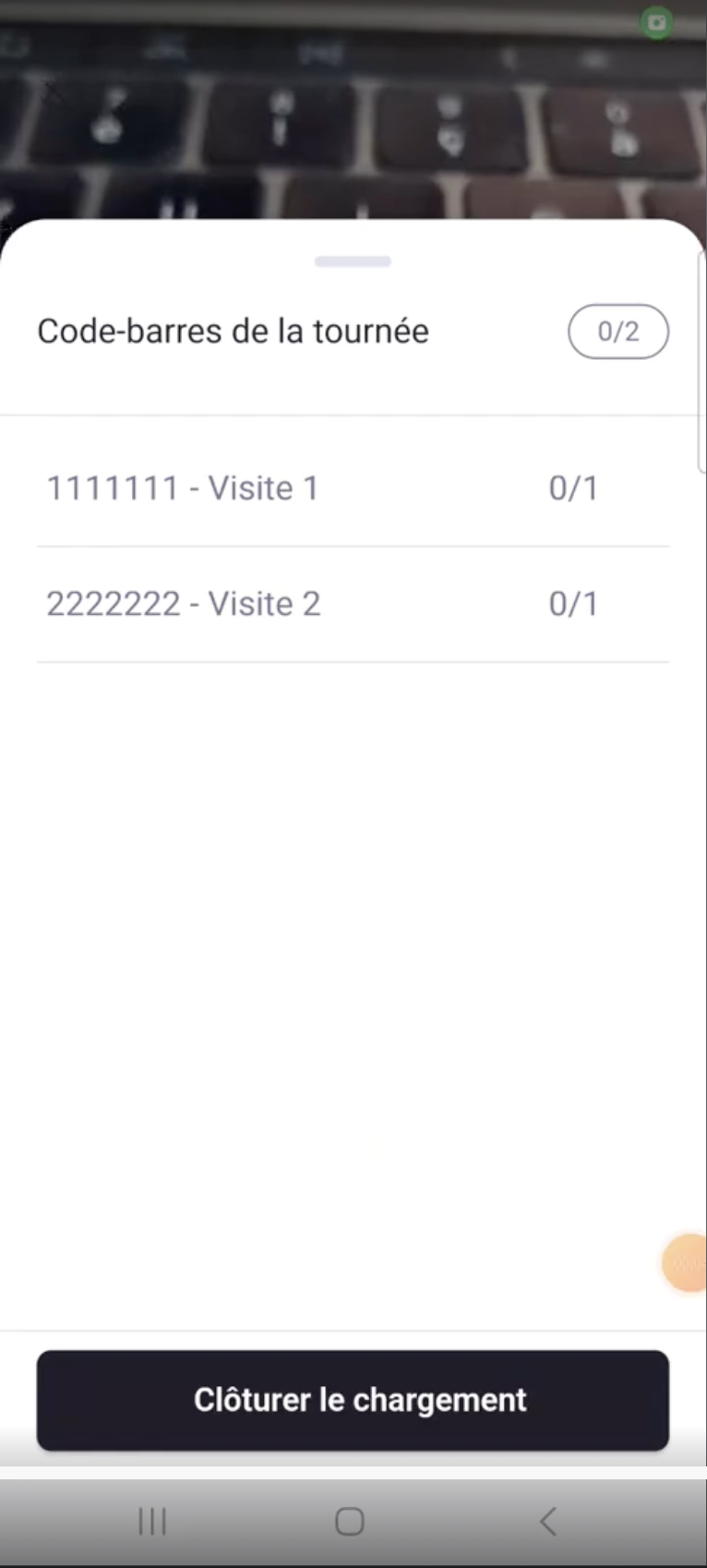
3. Scan screen – Mass Pickup
When the camera is active:
The user can see all the expected barcodes for their route.
Each barcode corresponds to a delivery (a mission).
Scan behaviour
When a barcode is scanned:
It is identified by the system.
It is automatically linked to the corresponding mission.
The mission is marked as scanned at loading.
No manual status update is needed.
4. Closing the loading session
When the driver finishes scanning:
They close the loading session.
All scanned missions automatically change status.
Example:
"To do" → "Loaded"
The update is automatic and systematic.
5. Reopening the scan after closing
It is possible that:
New parcels arrive after closing.
A parcel was forgotten.
The driver finished loading too early.
In this case:
The driver can go back into the scan module.
They can scan the new parcels.
The corresponding missions will be updated automatically.
The system therefore allows the Mass Pickup to be reopened.
6. Managing parcels not scanned at loading
If a parcel cannot be scanned:
The driver can:
Check the parcel again (reading error, damaged label, etc.)
Report the missing parcel to their manager
Reporting allows the back office to handle the issue.
7. Synchronising new parcels
Important:
New parcels assigned to the driver do not automatically appear on the scan screen.
If a parcel is added before, during, or after scanning, the driver must return to the “Route list” page. This is where the app fetches new missions from the back office tools. Without returning to the list, new parcels will not be visible.
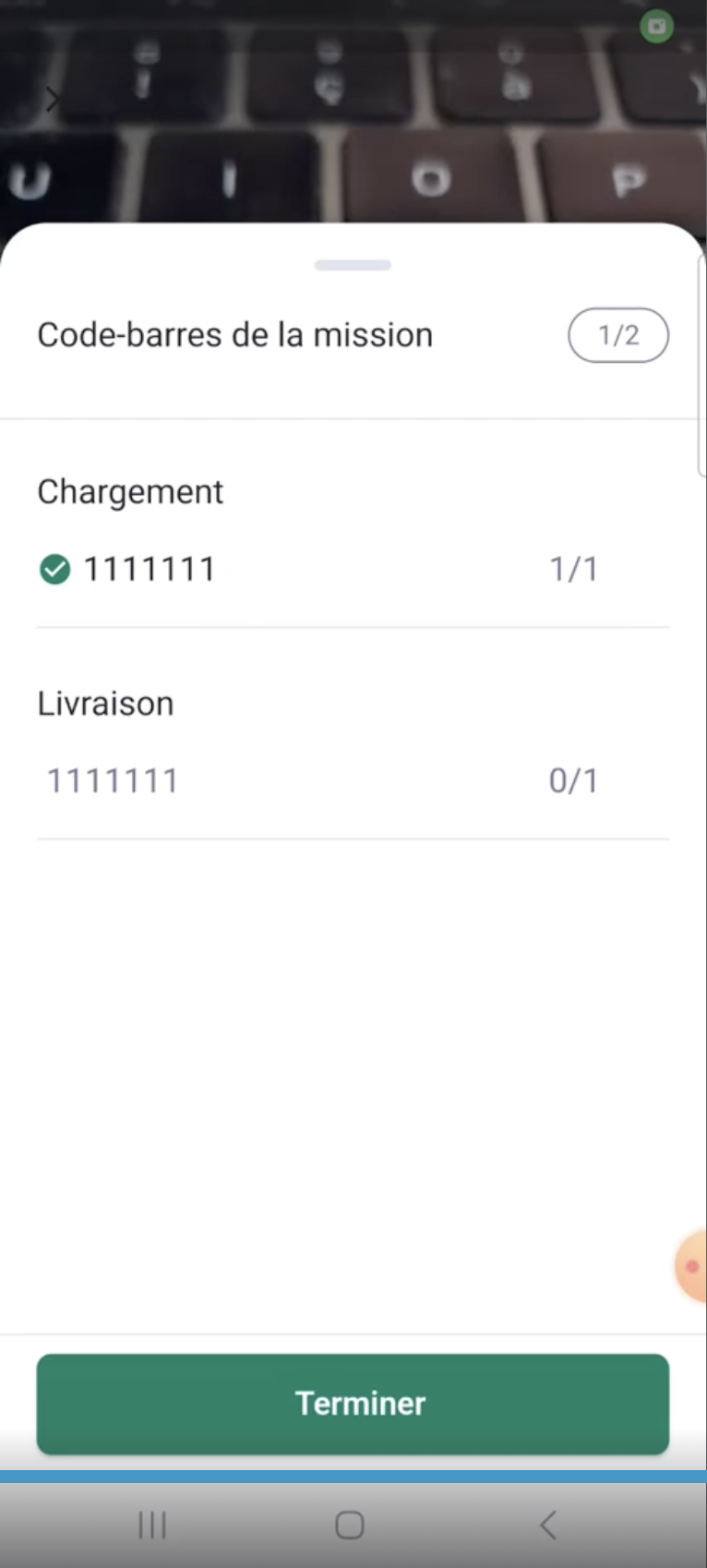
8. Mass Delivery – Group delivery
Mass Delivery works on the same principle as Mass Pickup, but applies to handing over to the customer.
8.1 Accessing a destination
If several parcels belong to the same destination:
The driver clicks on the destination.
The app displays all barcodes linked to that address.
8.2 Scanning at delivery
To confirm handover:
The driver must rescan the parcel’s barcode.
The scanned barcode must match the one scanned at loading.
If the scan is correct:
The mission automatically moves to the final status (e.g. "Delivered").
8.3 Group delivery
If several parcels are linked to the same destination:
The driver can scan all the barcodes one after the other.
Each mission is updated automatically.
All statuses are updated individually.
There is no overall validation without individual scanning.
Each parcel remains independent in the system.
8.4 Exceptions at delivery
If a parcel cannot be delivered, for example, if it is damaged, the customer is absent, the customer refuses it, or there is a transport problem, the driver can:
Apply a specific status (reason for failure)
Add a comment if needed
Report the problem to their manager
The status is then updated accordingly (e.g. "Delivery failed").
9. Managing incidents after loading
If a parcel checked at loading has a problem during transport:
The driver can report the incident from the mission.
They can document the problem.
The manager is informed.
The system therefore allows:
Loaded → Transport incident → Back office processing
11. Key points to remember
1 barcode = 1 mission = 1 parcel.
Statuses update automatically after scanning.
The scan can be reopened after closing.
New parcels require a return to the route list.
Each parcel is handled individually, even in mass mode.