Authentication
The user can make it easier to access their Mapo Driver account by:
- entering their email address and password,
- ticking the "Stay signed in" box.
For up to 3 days, if the user wants to access the Mapo Driver app, a single click will be enough to log in automatically to their account, without having to enter their email and password again, as long as they ticked the "Stay signed in" box. In addition, there will be help with filling in their email and password to save them from having to type out their full address and password.
However, if the user does not tick this box, they will not be automatically signed in the next day, and will need to manually enter their email address and password to access their account.
Settings
The settings can be accessed from the menu at the top left.
Here, you can configure different service states for how our mobile app works.
.
.
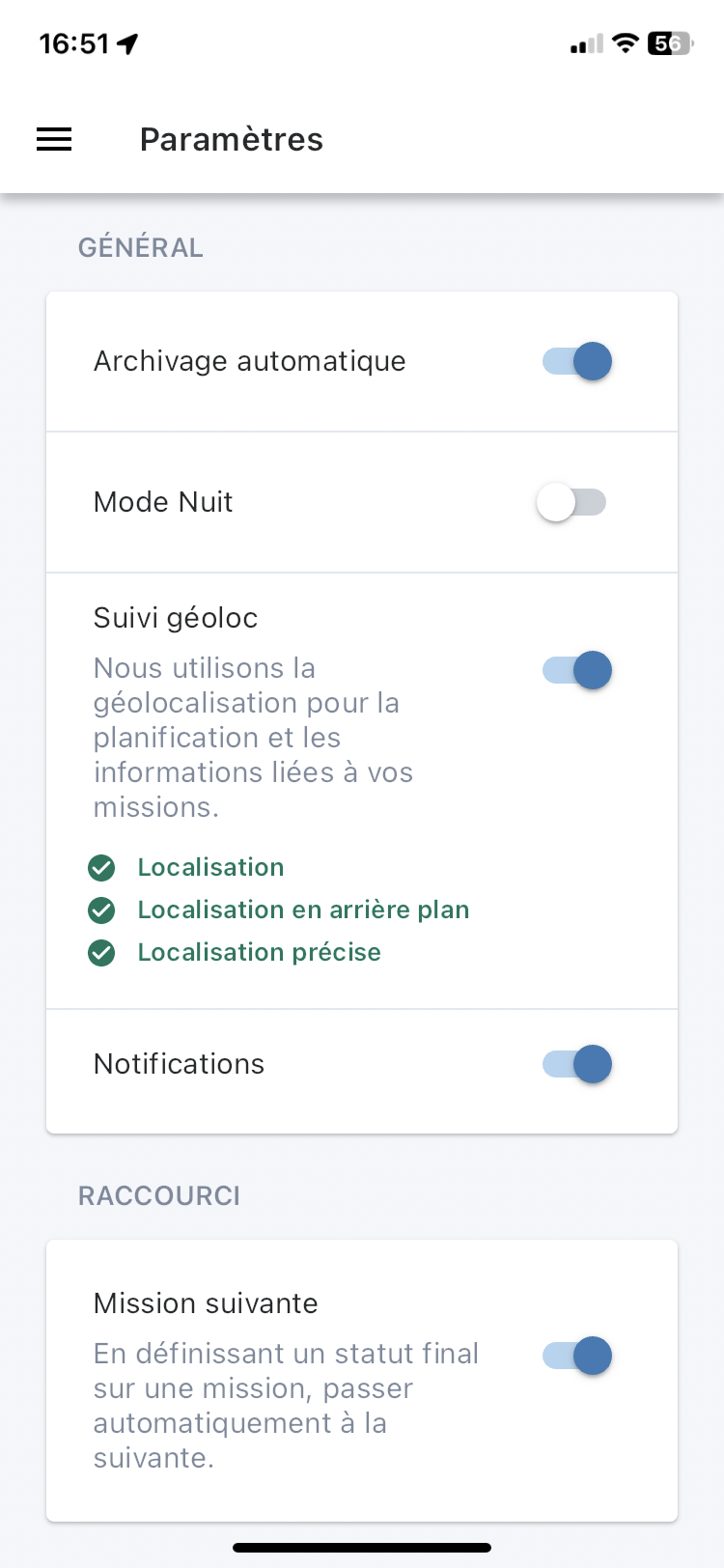
Use the toggle to activate or deactivate each setting:
- automatic archiving: when the status of the last mission in the route changes to "Completed", we automatically archive the route,
- night mode: this helps you save your device's battery and makes it easier to see when lighting is low,
- geolocation: this is used so the planner can track the progress of the route from the public portal, and so the driver can record their position.
- next mission: when a mission is completed, we automatically move the driver on to the next mission.
- navigation app: this setting lets you choose the default GPS app.
- text size: the user can adjust the zoom and font size in Mapo Driver to suit their eyesight and make reading easier.
By scrolling down the page, you'll find the "About" section where you can access:
- our privacy policy,
- our legal notice, and
- our terms and conditions of use.
Offline mode
If there are connection or synchronisation issues with the mobile app, due to "dead zones" or the performance of the phone being used, a message will appear to let you know whether the mobile app is connected or not. When the connection is restored, a new message will appear confirming that synchronisation has been re-established.
When the app is offline, meaning there is no connection or it can't sync with a planning tool, the mobile app still works!
No information will be sent to the route planning tool, but the user can still carry out their routes.
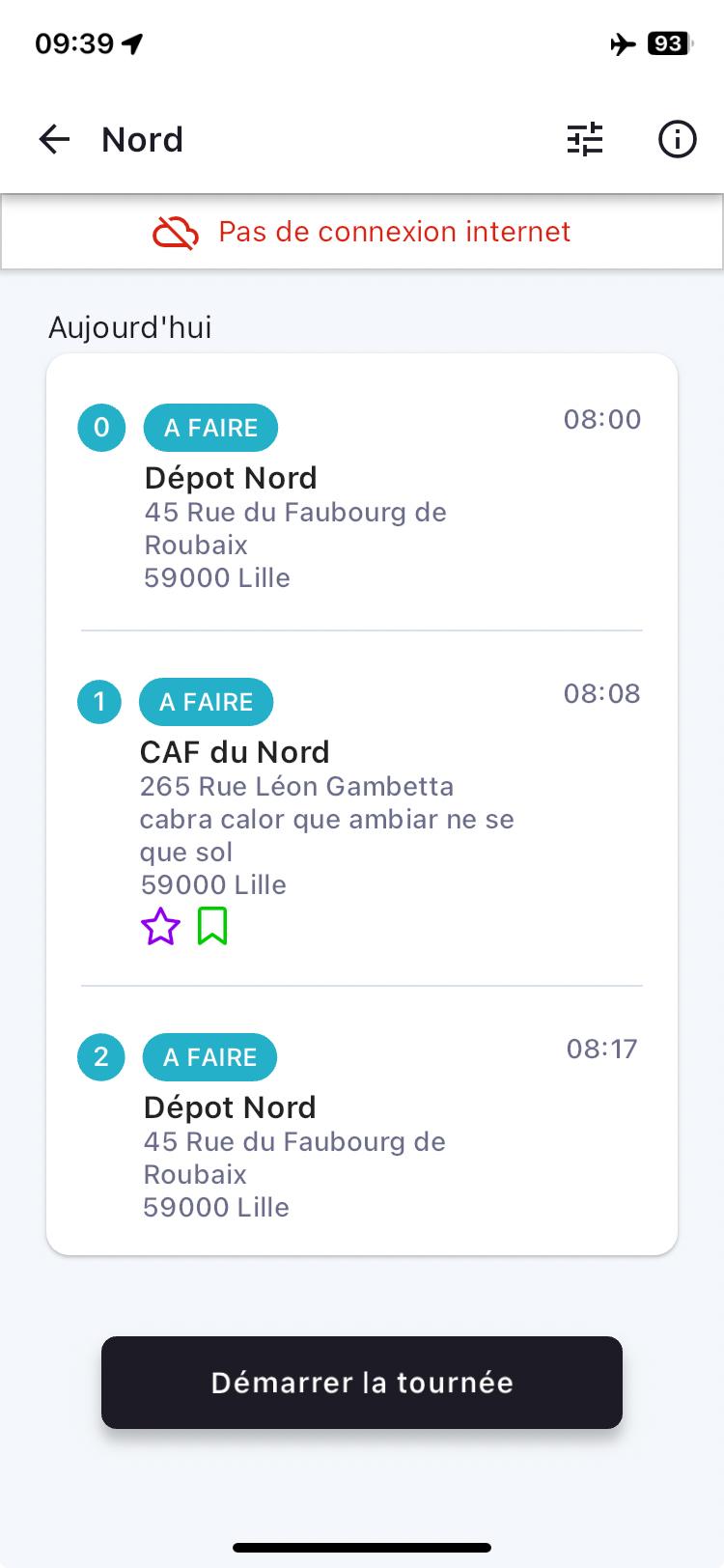
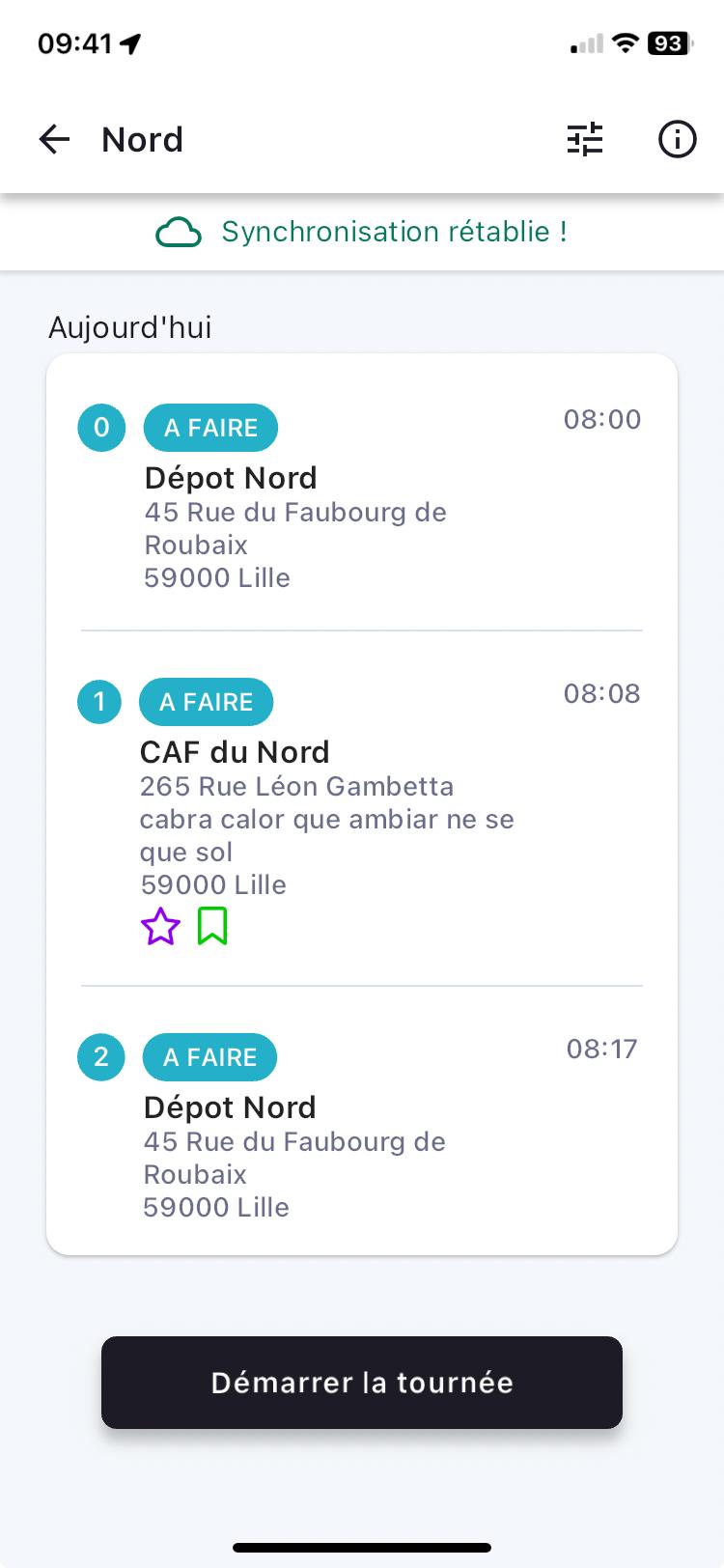
The information from the user's actions in the mobile app will be kept until the device reconnects to a network and to the carrier's planning tool.
When the connection is restored, a new message will appear confirming that synchronisation has been re-established.