Route List
Once you're logged in, by default, you'll land on the page showing your active routes. You can View both your active and archived routes on this page.
Active
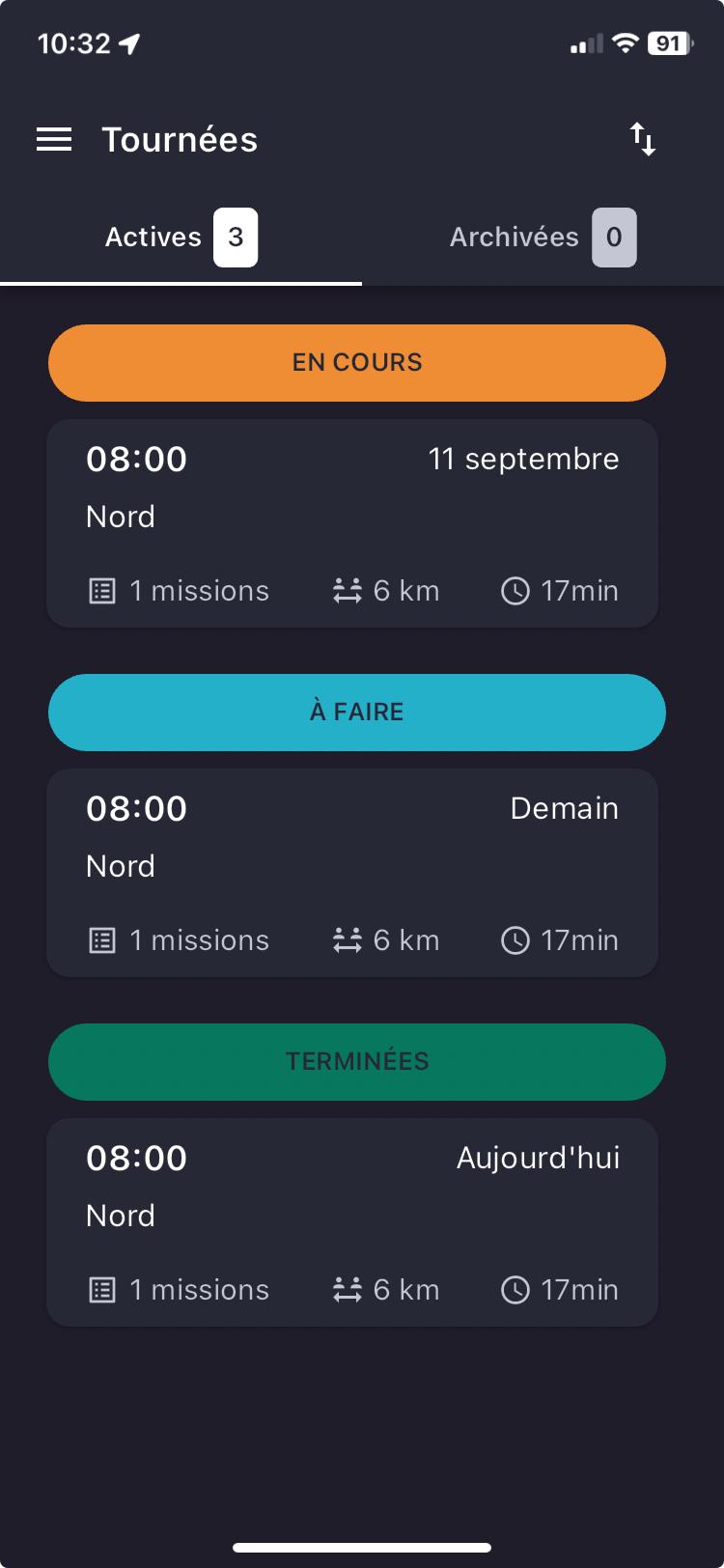
You can see all your active routes and their details on a single screen!
You’ll find:
- the status of the route,
- the route date,
- the planned start time of the route,
- the name of the route,
- the number of Missions in the route,
- the total estimated distance of the route,
- and the total estimated time for the route.
Tap on a route to access the Missions and their attached Details.
Archived
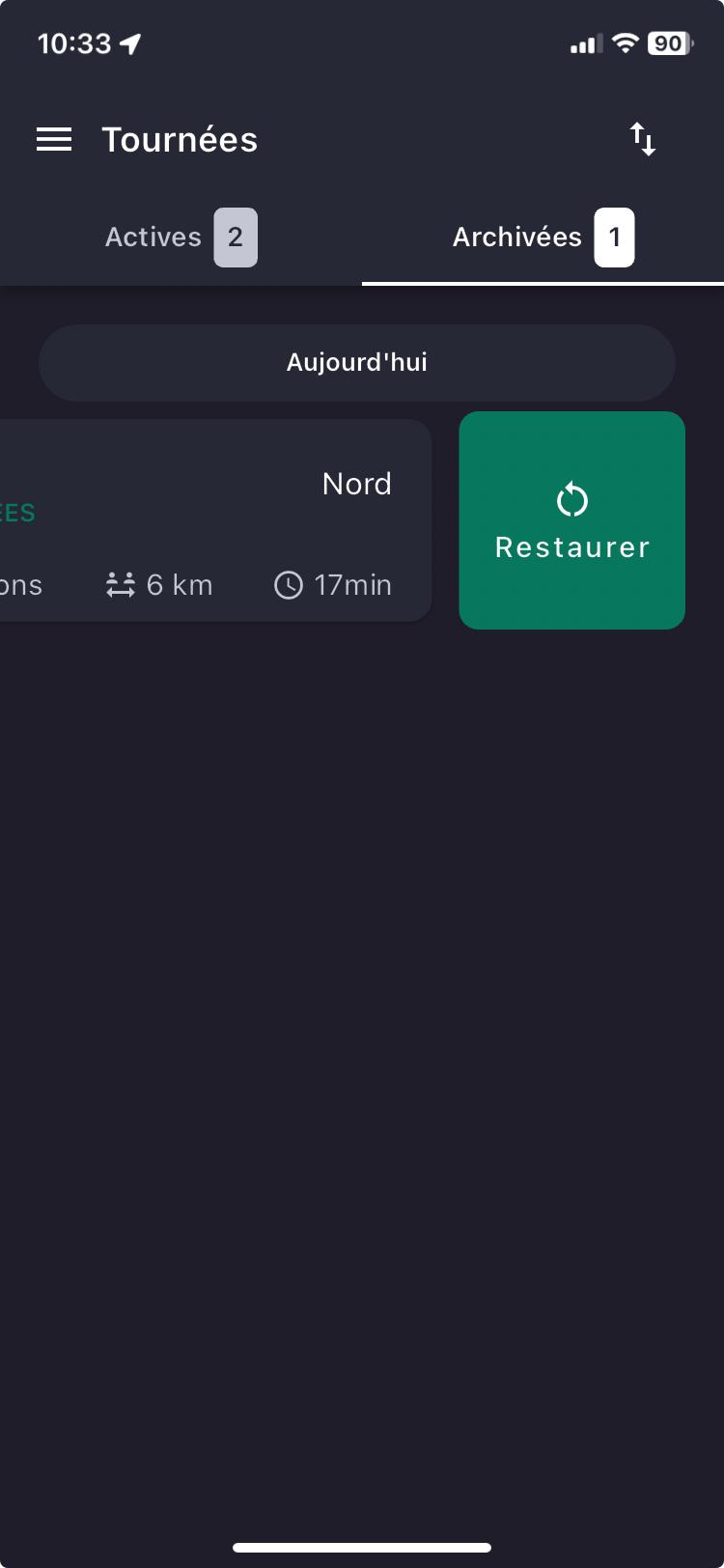
You can View the list of all routes that have been completed.
The Missions and Details of archived routes can't be Viewed. To do so, you need to restore the route to access the Details.
Your archived routes are kept for 15 days in the mobile app. After this period, they will be deleted from the mobile app.
If you wish, the Mapo Driver team can set up for you:
- automatic deletion of archived routes in the app after 24 hours. This feature was added to prevent drivers from being overloaded with outdated information,
- automatic archiving of a route when it is completed (marked by a final status)
Sorting routes
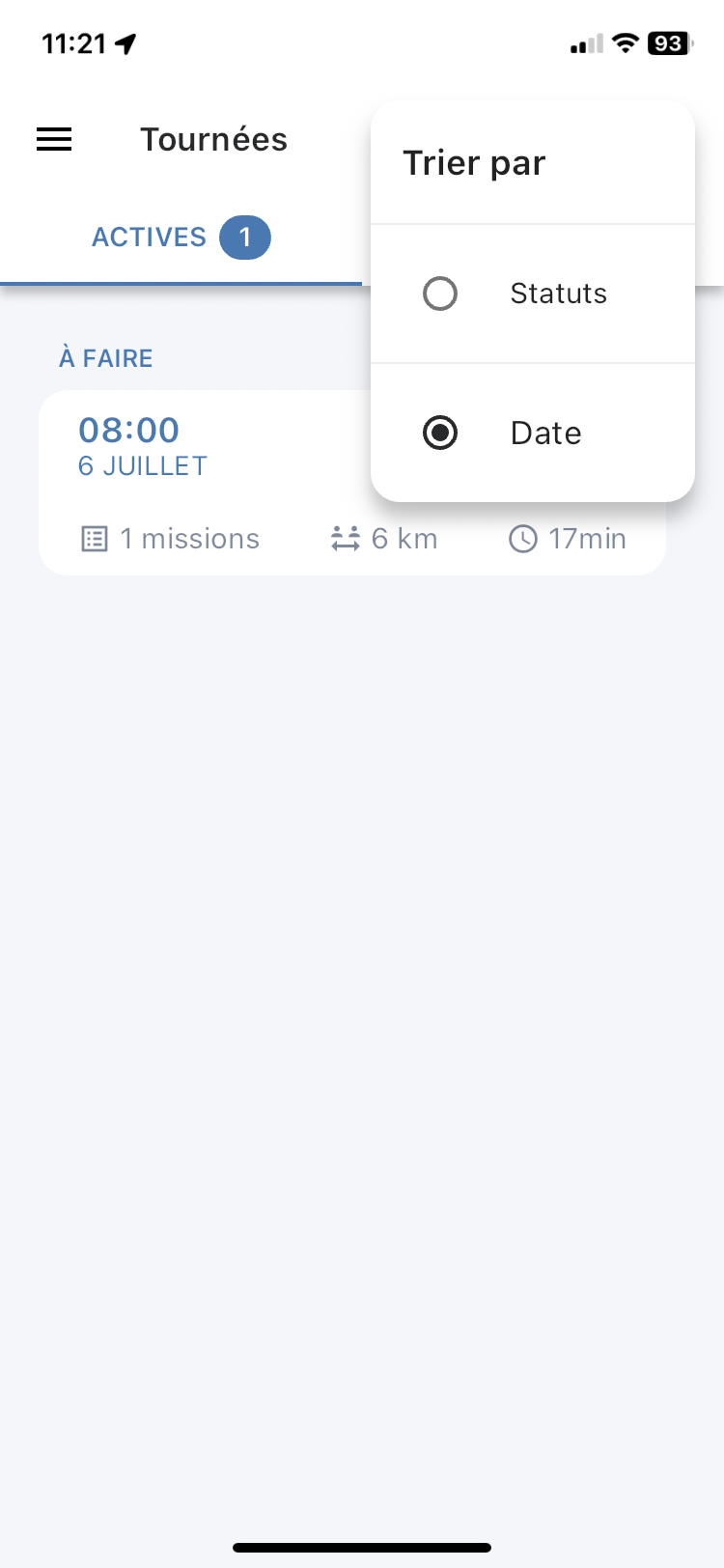
From the route list, you can click on the filter to sort your routes either by status or by date.
When sorting by status, routes are ordered as below by increasing date and time:
- In progress
- To do
- Completed
When sorting by date, routes are ordered as follows:
- Sorted and displayed in ascending order, from the earliest date to the furthest in the future
- They are arranged from the earliest time to the latest
 .
. 
Mission List
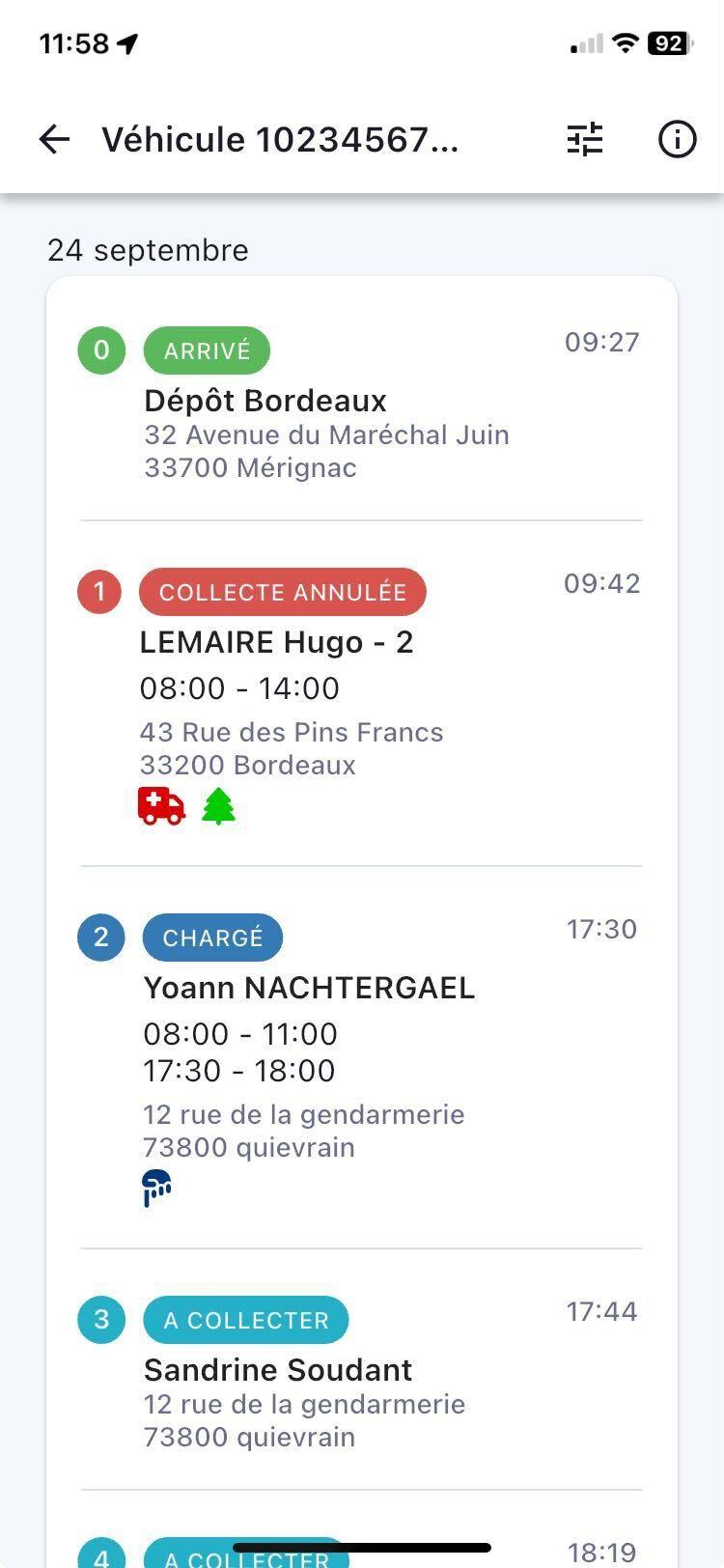
You can View all your Missions on the same page.
Just like on the routes page, you’ll be able to see all the Details of your Missions!
You’ll find:
- the name of the route (e.g. "South-West"),
- the date your Missions are scheduled for,
- the estimated arrival times at each destination,
- the statuses of your different Missions,
- the name of each Mission,
- their respective addresses
- as well as the Delivery slots if these are provided.
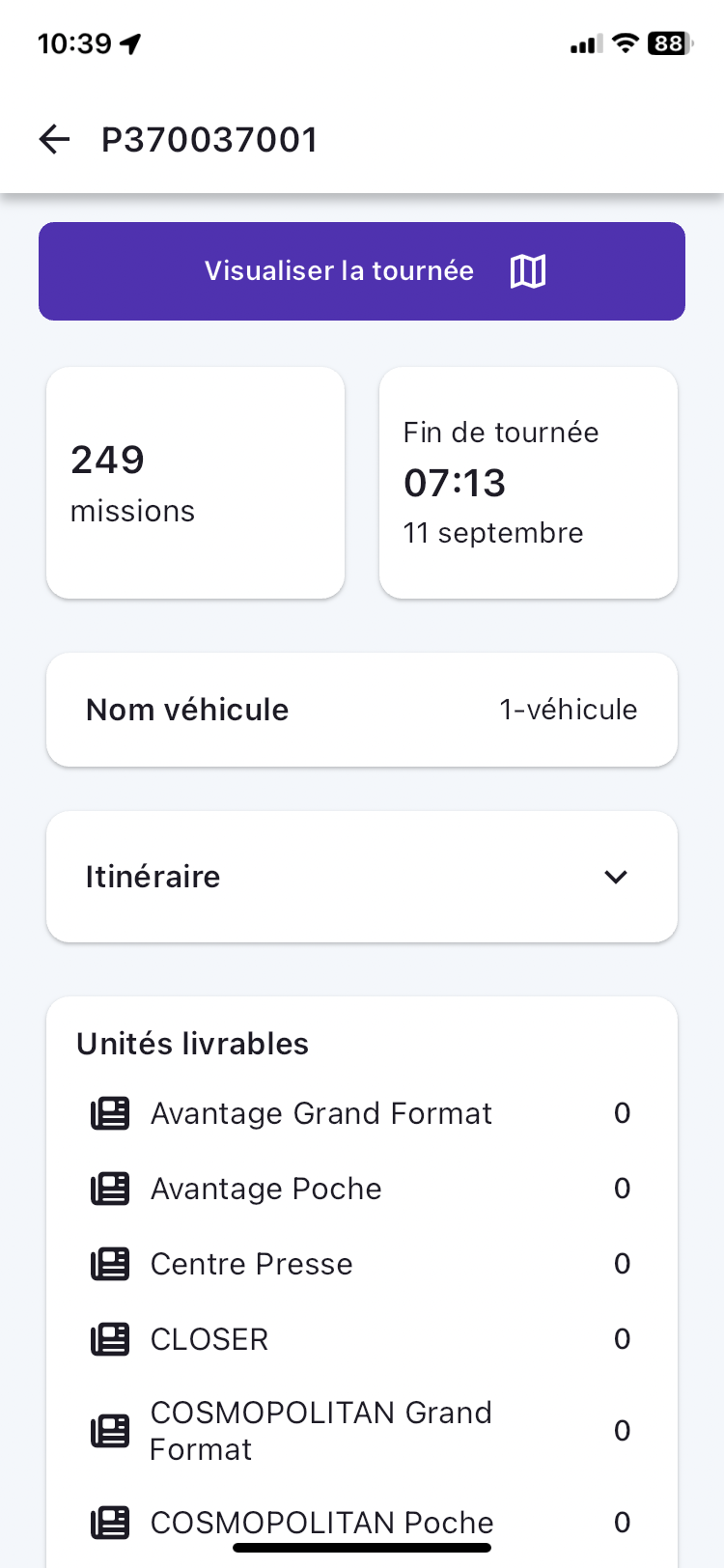
Route Summary
To help you plan and prepare your routes, the route summary shows the key information for:
- number of Missions in a route,
- the list of towns where Deliveries are scheduled,
- the end date of the route,
- and the end time of the route.
This information is displayed in a pop-up:
- from the screen listing the Missions of an assigned route,
- and when the User first clicks on an assigned route.
At the top of the route summary page, there’s a button which, when clicked, displays a map background:
- the Delivery points for the Missions making up the route,
- the numbering of Missions in the planned chronological order,
- cluster management of points when zooming in and out,
- on a map background with international coverage,
- with both dark and light modes,
- and handling cases where there’s no connection or network