Enabling Geolocation
When downloading or updating the mobile app, the user is guided through an awareness and support process to enable geolocation.
The activation or deactivation of geolocation details can be viewed and managed from the settings in the menu.
This process is triggered when the user logs in, and the settings will affect the following features:
- Tracking the user in the Mapo Planner dashboard,
- Recording the user's position on request.
Notifications
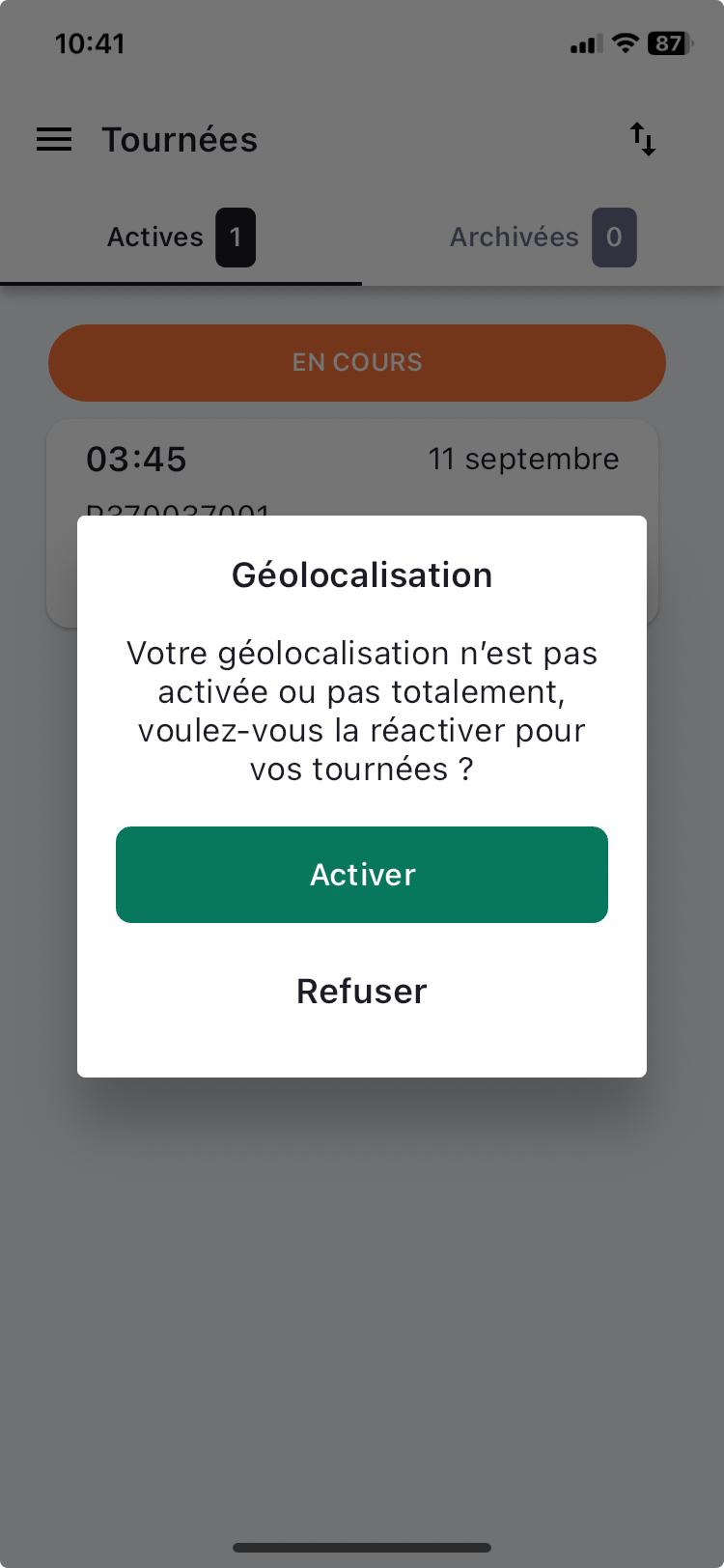
When the user logs in, if my permissions and my geolocation permissions are disabled, a pop-up appears to alert the user.
On login, a check is carried out to identify:
- if location access is enabled in the phone settings,
- if location access permission is enabled for the Mapo Driver app,
- and if precise location access is enabled for the Mapo Driver app
The pop-up appears once a day until geolocation is fully enabled.
Configuring Mapo Driver Usage Blocking
1. Purpose
Prevent any use of the app until geolocation is enabled in:
"Always allowed" mode on Android
"Always" mode on iOS
Main goal:
Ensure reliable tracking of missions and prevent any data loss.
2. Context
The proper functioning of Mapo Driver relies on:
Continuous position updates
Real-time route tracking
Consistency of geolocated statuses
Integrity of data sent to back-office tools
Without active geolocation:
Tracking is degraded or non-existent
ETAs are inaccurate
Geofencing does not work
Proof of passage may be invalidated
Back-office tracking becomes inaccurate
3. Activation
This feature is controlled via a Feature Flag at account level.
If the flag is enabled:
Blocking becomes mandatory for all drivers linked to the account.
If the flag is not enabled:
No automatic blocking.
4. Main rule
As long as geolocation is not:
Enabled
Set to "Always allowed" mode
The app is blocked.
No business screens are accessible.
5. User behaviour
5.1 Blocking
When the app is opened, if geolocation is:
Disabled
Enabled only "While using the app"
Denied
Limited
Then:
The user is redirected to a dedicated blocking screen.
No access to missions.
No access to features.
5.2 Blocking screen
The screen:
Explains why geolocation is required.
Clearly states the required mode ("Always allowed").
Provides a direct link to system settings.
6. Automatic unblocking
If the user:
Opens the system settings
Enables geolocation in "Always" mode
Then:
The app detects the change.
The block is automatically removed.
The user returns to the initial screen.
No restart required.